


 Bodno A10From $995
 Bodno A20From $1,595
 Bodno A30From $1,995
 Bodno A40 ProFrom $2,995
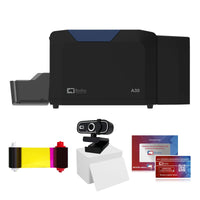 vs.
vs.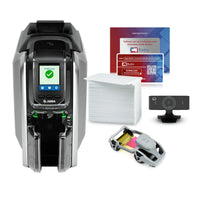

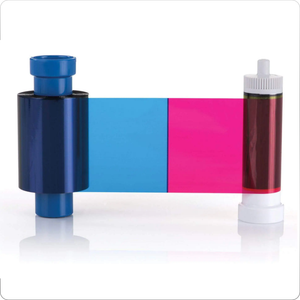
 CR80 30 mil PVC cardsFrom $3.99
 Adhesive-backed PVC cardsFrom $9.99
 Proximity cards (NoMativ)From $14.99
 NTAG NFC cards, 100 packFrom $59.00
 Buy the softwareDesign and print ID cards on PC and Mac
ID Card Printer Support
Drivers, firmware, manuals and fixes for 36 printer models, plus the ribbons and cards to get you printing again.
Choose Your Printer
Each printer page has its driver, firmware, manuals, error codes and supplies in one place. The model name is on a label on the back or bottom of the printer.
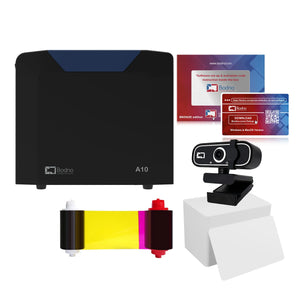 BodnoBodno A10
 BodnoBodno A20
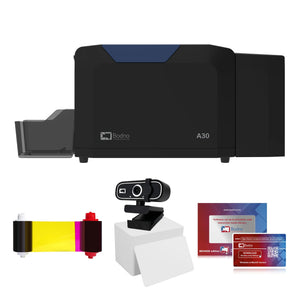 BodnoBodno A30
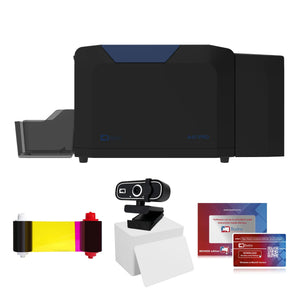 BodnoBodno A40 Pro
 MagicardMagicard 400X
 MagicardMagicard 250X
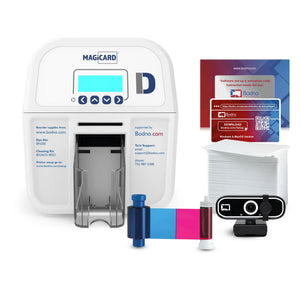 MagicardMagicard D
 MagicardMagicard 300
 MagicardMagicard 600
 MagicardMagicard Pronto 100
 MagicardMagicard Pronto
 SeaorySeaory S25
 SeaorySeaory S26
 SeaorySeaory S28
 SeaorySeaory R330
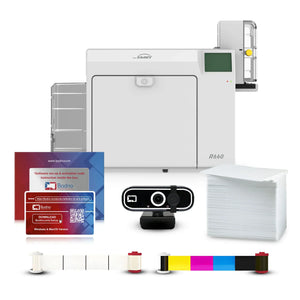 SeaorySeaory R660
 ZebraZebra ZC100
 ZebraZebra ZC300
 ZebraZebra ZC350
 ZebraZebra ZXP Series 7
 FargoFargo DTC1250e
 FargoFargo DTC4250e
 FargoFargo DTC4500e
 FargoFargo HDP5000
 FargoFargo HDP5000e
 FargoFargo HDP6600
 EvolisEvolis Badgy100
 EvolisEvolis Badgy200
 EvolisEvolis Primacy 2
 EvolisEvolis Zenius
 MaticaMatica MC320X
Older models we still support
Drivers and manuals stay onlineNo printer matches that. Try just the model number, or ask us.
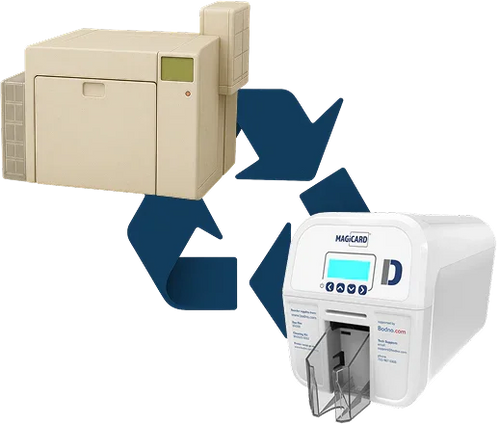
Running an older printer? Get up to $600 back
Trade in any brand, in any condition, working or not, when you buy a new printer. We send a prepaid label and refund the rebate to your card.

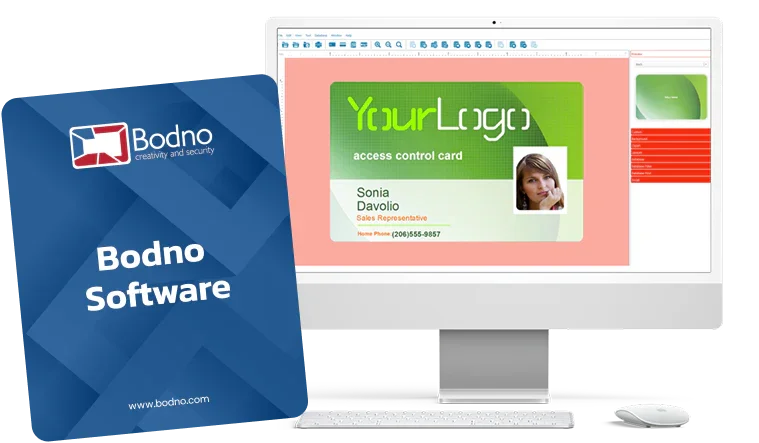
Bodno ID Card Software
Version 1.7.139 · Windows (including 11) & Mac
Design and print your ID cards. Activate it with the code we emailed you, which arrives within 15 minutes of purchase.
Install guide & software helpLicense statusBuy a licenseRenew my licenseNew computer
Error Codes & Common Fixes
Seeing an error number on the printer or in the software? Start here. Your printer's page has the fixes for that exact model.
Get the Right Ribbon, Cards and Cleaning Kit
Ribbons and cards are made for specific printers. Pick yours and we'll show only what fits.
Support Questions, Answered
If your issue involves card design, templates, Excel/CSV imports, activation codes, license keys, or installing Bodno Software, start with Software Support.
If your issue involves drivers, connectivity, print quality, ribbons, card feeding, jams, or anything physical on the printer, start with Printer Support.
Quick rule: If the problem is on your screen → Software. If the problem shows on a printer test print → Printer.
Yes. You don’t need to know the model to start with a few universal fixes:
- Reseat the ribbon (make sure it’s not torn or loose)
- Fan the cards to reduce static and double-feeds
- Remove any stuck cards from the card path
- Plug USB directly into your computer (avoid hubs/docks for testing)
To identify your model, try:
- The label on the back or bottom of the printer
- Your computer’s printer list (Printers & Scanners)
- Matching your printer using the photos on this page
Still unsure? Email or call us with a photo of the label—we’ll confirm it quickly.
Ribbon tearing is frustrating—but it’s usually fixable. The most common causes are dust, ribbon tension, incorrect ribbon type, or cards sticking together.
Try these quick checks:
- Run a cleaning cycle (dust is the #1 cause)
- Confirm the ribbon matches your exact printer model
- Fan cards and make sure they’re clean and dry
- Power-cycle the printer to reset ribbon tension
- Avoid extreme hot/cold environments during printing
If it happens again after these steps, select your printer model for the model-specific fix.
You can check your license status anytime here:
(https://bodno.com/pages/status-landing)
You’ll see whether your license is:
- Active
- Expired
- Expiring soon
- Activated on another device
This page is status only (not for purchasing or reactivating).
If this is your first setup, start here:
(https://bodno.com/pages/register-your-printer)
If you already registered and just need the setup links again, go here:
(https://bodno.com/pages/setup)
Both pages guide you through the correct steps for your printer model so you’re not guessing.
Scroll to Find Your Printer Model on this page and select your brand and then your model.
Each model page includes:
- Drivers
- Manuals
- Firmware (if applicable)
- Cleaning steps
- Compatible supplies (ribbons/cards)
This keeps everything organized so you download the right files the first time.
Most printers include an internal test card option. This is the fastest way to separate a printer issue from a design/settings issue.
- If the defect appears on the internal test card, it’s likely a printer-side issue (hardware/cleaning/ribbon path).
- If the internal test card looks perfect, it’s likely software/design/settings.
If you’re contacting support about print quality, a photo of the internal test card saves time and gets you a faster answer.
We know how annoying this is—especially when every card matters. These issues usually come from dust, ribbon mismatch, print settings, or a dirty print path.
Try these universal fixes:
- Run a cleaning cycle
- Confirm the ribbon matches your exact printer model
- Fan cards and reload (don’t overfill the hopper)
- Print the internal test card
- Check print density / quality settings in your driver/software
- For troubleshooting, plug the printer directly into a wall outlet and use the original power supply
If you see a perfectly straight white line (same spot on every card):
That line usually points to the printhead. The printhead is a row of tiny heat elements (“pixels”). If one element fails, it never prints—creating a thin, perfectly straight line in the exact same location.
If the line doesn’t move after you’ve changed the ribbon, cleaned the printer, and power-cycled, the next step is usually printhead replacement.
Feeding issues are common—and usually caused by static, dust, card thickness, or hopper overload.
Start here:
- Confirm your card thickness matches your printer specs
- Fan cards to reduce static
- Don’t overfill the hopper
- Run a cleaning card (dust buildup matters)
- Check for stuck cards or broken card pieces in the card path
- For testing, use the original power supply and a direct wall outlet
If it still jams, select your printer model for the exact feed-path checks.
We can help much faster when we don’t have to guess. Please include:
- Printer model
- Operating system (Windows/Mac + version)
- Connection type (USB or Ethernet)
- Order number or printer serial number (if available)
- A clear description of the issue
- Photos of the problem (prints, error messages, and internal test card if print quality)
The more you include upfront, the fewer emails back-and-forth—and the faster you’re printing again.
Talk to a Bodno Technician
Real people who set up these printers every day. Tell us what you see and we'll walk you through it.
Call, email or share your screen
Pick whichever is easiest. Phone is fastest.
Send us your question
Include your printer model, and a photo of the card or error message if you can.
