


 Bodno A10From $995
 Bodno A20From $1,595
 Bodno A30From $1,995
 Bodno A40 ProFrom $2,995
 vs.
vs.



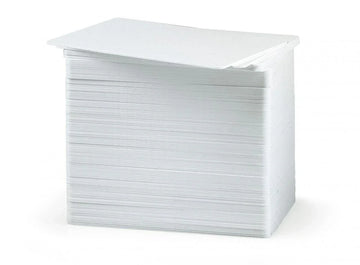
 CR80 30 mil PVC cardsFrom $3.99
 Adhesive-backed PVC cardsFrom $9.99
 Proximity cards (NoMativ)From $14.99
 NTAG NFC cards, 100 packFrom $59.00
 Buy the softwareDesign and print ID cards on PC and Mac




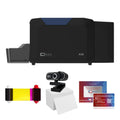
Still running a Magicard Enduro 3e? Get a $300 trade-in rebate — your Bodno A30 comes to $1,695.
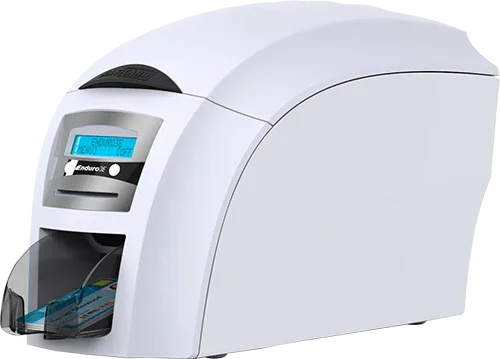
Printer Support › Magicard Enduro3e
Older model · still supportedMagicard Enduro3e Support
Drivers, firmware, manuals and step-by-step fixes, plus the ribbons and cards that fit this printer.
Thinking about replacing your Magicard Enduro3e? See your upgrade options →
Magicard Enduro3e Drivers, Firmware & Manuals
Setting up a new computer? Do it in this order.
- Install the printer driverThen connect the printer to your computer and turn it on.
- Install Bodno ID Card SoftwareActivate it with the code from your email.
- Print a test cardConfirms the printer, ribbon and driver all work.
Bodno ID Card Software
Design and print your cards. Already installed? Activation & license help
Latest version 1.7.139 · Windows (including 11) & MacGuides & manuals (PDF)
Unboxing, loading the ribbon and cards, cleaning and settings.
Magicard Enduro3e Fixes & How-To
Find your error code, or pick the topic below. Most problems are sorted in a few minutes.


Ribbons & Cards for the Magicard Enduro3e
The ribbons, cards and cleaning kits made for this printer. Free shipping over $100.
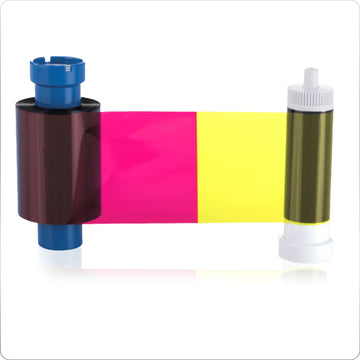
 Ribbon
Magicard MA250YMCKOK Color Ribbon for Rio Pro & Enduro Dual-Sided - YMCKOK - 250 prints
Ribbon
Magicard MA250YMCKOK Color Ribbon for Rio Pro & Enduro Dual-Sided - YMCKOK - 250 prints
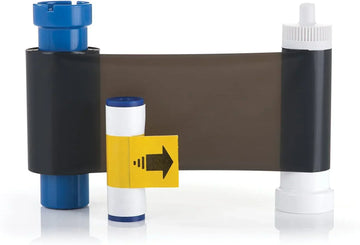 Ribbon
Magicard MA1000K-Black Monochrome Ribbon for Rio Pro, Enduro, Pronto, 300 & 600 - K - 1,000 prints
Ribbon
Magicard MA1000K-Black Monochrome Ribbon for Rio Pro, Enduro, Pronto, 300 & 600 - K - 1,000 prints
 Ribbon
Magicard MA600KO Black Monochrome Ribbon with Overlay for Rio Pro, Enduro & Pronto - KO - 600 prints
Ribbon
Magicard MA600KO Black Monochrome Ribbon with Overlay for Rio Pro, Enduro & Pronto - KO - 600 prints
Trade in your Magicard Enduro3e for up to $600 back
We still support the Magicard Enduro3e. When it's time to upgrade, send it to us in any condition, working or not, and get a rebate on a new printer. We send the prepaid label.

Magicard Enduro3e FAQ
How do I download and install the Magicard Enduro3e driver?
Use the Printer driver button above for Windows or Mac. Run the installer, then connect the printer by USB and turn it on. When the printer shows up in Printers & scanners, print a test card to confirm everything works.
On a Mac, if the installer will not open, go to System Settings › Privacy & Security and click Open Anyway. Company computers may need IT to allow it.
How do I update the Magicard Enduro3e firmware?
Most printers rarely need it. Update only if our support team asks you to, or to fix a known issue. Download it from Firmware update above, keep the printer turned on and connected by USB, and follow the instructions that come with the download.
Do not turn off or unplug the printer while it updates. If you would rather not do it alone, call us and a technician will run it with you over remote support.
Which versions of Windows does the Magicard Enduro3e work with?
All of them, including Windows 11. The Magicard Enduro3e driver and Bodno ID Card Software both work on any version of Windows. Get them from the downloads above.
Does the Magicard Enduro3e work on a Mac?
Yes. Download the Mac driver above. Bodno ID Card Software runs on Mac too.
How do I print a test card?
Most card printers print a test card from the driver: open Printers & scanners, select the printer and open Printing preferences. The User Manual above shows the exact steps for the Magicard Enduro3e. If you cannot find it, call us and we will walk you through it.
If the test card prints cleanly but your cards do not, the problem is in the software or the card design, not the printer.
Which ribbons and cards does the Magicard Enduro3e use?
Ribbons made for the Magicard Enduro3e:
- Magicard MA300YMCKO Color Ribbon for Rio Pro, Enduro & Pronto - YMCKO - 300 prints $106.62
- Magicard MA1000K-Black Monochrome Ribbon for Rio Pro, Enduro, Pronto, 300 & 600 - K - 1,000 prints $24.00
- Magicard MA250YMCKOK Color Ribbon for Rio Pro & Enduro Dual-Sided - YMCKOK - 250 prints $124.29
- Magicard MA600KO Black Monochrome Ribbon with Overlay for Rio Pro, Enduro & Pronto - KO - 600 prints $77.17
Cards: CR80 PVC cards. Most badges are printed on 30 mil cards, like our Bodno CR80 30 mil PVC cards. Keep them in the box until you load them, because dust and fingerprints show up on the print.
Which cleaning kit does the Magicard Enduro3e use, and how often should I clean it?
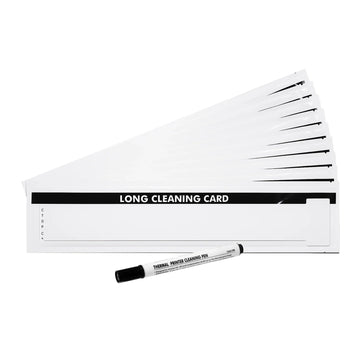
- Bodno Cleaning Kit for Magicard Printers – 10 Cleaning Cards & Pen (Magicard 3633-0053 Compatible) $35.25
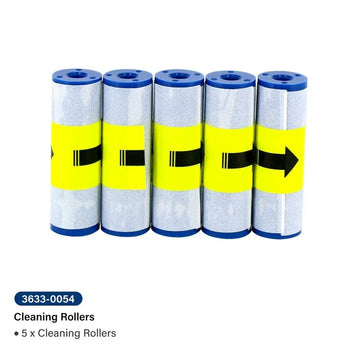
- Bodno Cleaning Rollers for Magicard Rio Pro 360, Enduro 3e, Pronto100, 300, 400X, 600 & D – 5 Pack (Magicard 3633-0054 Compatible) $23.13
Magicard recommends cleaning every 700 cards or at every ribbon change, whichever comes first, and right away if you see specks, dots or lines on your cards.
It says out of cards, but the hopper is full.
- Hand Feed Mode may be on. Menu › Hand Feed Mode › Off. While it is on, the printer only takes cards from the front slot.
- The rollers need cleaning. Cards slip on dirty rollers instead of feeding. Run a cleaning card.
- The cards are too thick or stuck together. The printer takes 20 to 50 mil cards (0.50 to 1.27 mm). Fan the stack before loading, and hold cards by the edges.
Cards print faint, or the printer shows a printhead or motor error.
Check the power adapter first. It is the most common cause, often after a desk move, when a laptop charger with the same plug gets connected by mistake. The Magicard Enduro3e uses a Sunpower 60W adapter, 24V 2.5A, with a white 60W tag. Any other adapter can cause faint printing, printhead-lift and motor errors, and can damage the printer.
If the adapter is right, open a fresh pack of cards and print the internal test card. If the test card is faint too, contact us. If only your own designs print faint, raise the YMC slider under Printing Preferences › Image › Printhead Power (the default is 50) a few steps at a time.
The ribbon broke or keeps sticking to the card.
To repair it, tape the two broken ends together, wind the black take-up spool about two full turns by hand, then turn the printer off and on.
Then fix the cause, or it will break again:
- A dirty main print roller. The card slips, the ribbon overheats and tears. Clean the printer with a cleaning card. If the roller still looks stained, press a strip of clear tape along it and peel it off, with the printer turned off.
- A card that already went through the printer. It has the clear overlay on it even if it looks blank. Use a fresh card.
- Printhead Power set too high under Printing Preferences › Image. Set the sliders back to 50.
There is a white line along every card.
Print the internal test card. If the line is on the test card too, a spot on the printhead is damaged and the printhead needs replacing. Contact us.
If the line is not on the test card, run a cleaning card and wipe the printhead with the cleaning pen.
What damages printheads: grit from cards left out of the box, ribbons left open on a desk, a blue cleaning roller that was not replaced, holes punched before printing instead of after, and rings or bracelets touching the printhead while changing the ribbon.
What is the blue roller, and when do I change it?
The blue sticky roller holds the dust the printer cleans off each card. A new one comes in the box with every genuine ribbon, so change it at each ribbon change:
- Open the lid and unclip the old blue roller.
- Slide out the metal bar inside it. Keep the bar.
- Slide the bar into the new roller and clip it in.
- Pull the tab to peel off the paper wrapper, then close the lid.
The orange roller underneath stays in the printer. Wipe it with a damp cloth when you clean the printer.
Barcodes print in colour or will not scan.
Some card programs send barcodes as a picture, so they print with the colour panels instead of solid black. Close your card software, then in Printing Preferences:
- Image tab › Advanced › set Colour Correction to Gamma 1.
- Card Front tab › Black Options › untick Pictures use YMC only.
Click OK and print again. To force solid black in one area, such as where the barcode sits, add it under Card Front › Black Options › Black Resin Areas.
My driver settings keep changing back.
Close your card software. In Devices and Printers, right-click the printer › Printer Properties › Advanced tab › Printing Defaults, and make your changes there. Then open Printing Preferences and check the same settings are set there too.
The driver install fails with error 2502.
The Windows account doesn’t have permission to install software. Sign in with a local administrator account just to install the driver (your IT team can help), then switch back. The printer works normally from a regular account afterward.
Does the Magicard Enduro3e come with a CD?
No. There is no CD. Download the driver and Bodno ID Card Software from the Downloads section above, or from bodno.com/pages/setup.
The driver won’t install, and Windows is in S mode.
Windows in S mode can’t install printer drivers. Switch out of S mode: open Settings › Activation and choose Switch out of S mode. It’s free, but you can’t switch back. On a school or work computer, ask your IT team.
Can I connect the Magicard Enduro3e through a USB hub or dock?
No. Use the USB cable that came with the printer, plugged straight into the computer. Skip hubs, docks and adapters, and on a desktop use a port on the back.
Does the Magicard Enduro3e work with a Chromebook?
No. Chromebooks only print to printers that work without a driver, and Magicard printers need one. Use a Windows or Mac computer.
I have a new computer. What do I install?
Three things, in this order: the printer driver, Bodno ID Card Software, then a test card. Activate the software with the code from your purchase email. If activation does not go through, see Activation & license help or call us.
What should I send support so they can help fast?
- Your printer model and the serial number from the label on the printer
- A photo of the card or the error message
- Windows or Mac, and which version
- USB or Ethernet
- Your order number, so we can check your coverage, including TotalCare
Talk to a Bodno Technician
Real people who set up these printers every day. Tell us what you see and we'll walk you through it on your Magicard Enduro3e.
Call, email or share your screen
Pick whichever is easiest. Phone is fastest.
Send us your question
Include your printer model, and a photo of the card or error message if you can.
