

 Bodno A10From $995
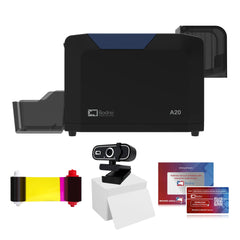
 Bodno A20From $1,595
 Bodno A30From $1,995
 Bodno A40 ProFrom $2,995
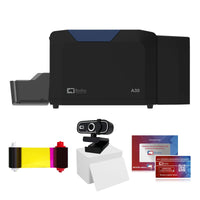 vs.
vs.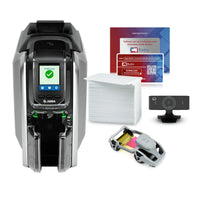

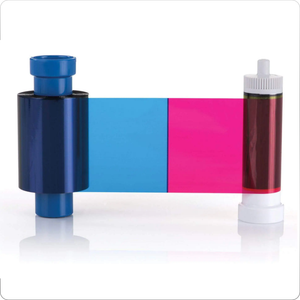
 CR80 30 mil PVC cardsFrom $3.99
 Adhesive-backed PVC cardsFrom $9.99
 Proximity cards (NoMativ)From $369.00
 NTAG NFC cards, 100 packFrom $59.00
 Buy the softwareDesign and print ID cards on PC and Mac

On this page
Updated September 14, 2026
If your printer is acting up, it’s usually one of a few categories: ribbon, feeding, print quality, connectivity/drivers, or software. This guide is written to get you back to printing fast, starting with the issues that stop production immediately (like ribbon tearing).
Quick Diagnose (60 seconds)
Pick the symptom that matches what you’re seeing:
-
Ribbon tearing / ribbon snapping / ribbon jam → go to “Ribbon Issues”
-
Cards won’t feed / misfeeds / card jam → go to “Card Feeding Problems”
-
Poor print quality (streaks, fading, missing color, white line) → go to “Print Quality Issues”
-
Printer not detected (USB/Ethernet) / printer offline → go to “Connectivity & Driver Issues”
-
Software won’t print / freezes / errors → go to “Software Issues”
If you just need setup help, start here:
ID Card Printer Setup Guides: https://bodno.com/pages/setup
Before You Start (Do these first)
These steps fix a large percentage of issues quickly:
-
Power cycle properly: turn printer off → unplug power for 20 seconds → plug back in → turn on
-
Print ONE test card (don’t run a batch)
-
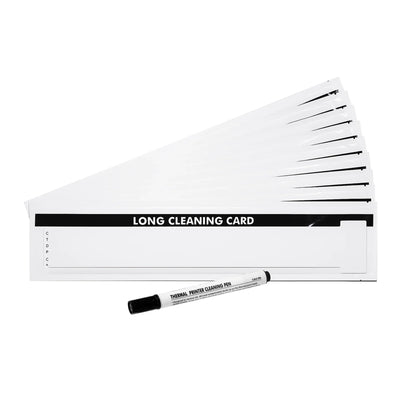
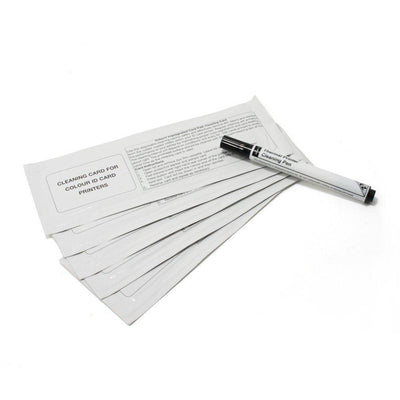
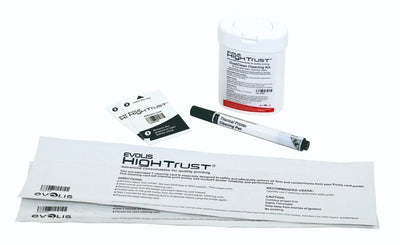
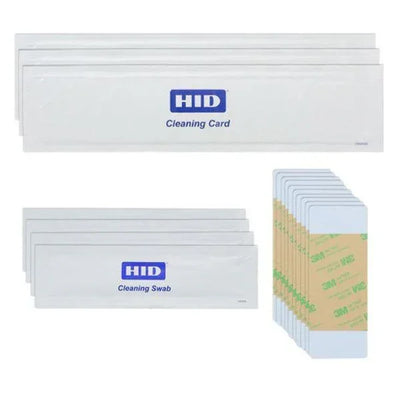
If you have one, run a cleaning cycle using a compatible kit
Cleaning kits (collection): https://bodno.com/collections/cleaning-kit
-
Ribbon Issues (Tearing / Snapping / Ribbon Jam)
Ribbon tearing is one of the biggest “printer is down” problems. It usually comes from tension, a card jam, incorrect ribbon seating, or debris in the path.
Symptoms
-
Ribbon snaps mid-print
-
Ribbon wrinkles/bunches
-
Repeated “ribbon error” / “ribbon jam”
-
Prints stop partway through and ribbon looks stretched or torn
Most common causes
-
Ribbon installed slightly wrong (path or take-up not engaged)
-
A card jam caused a sudden tension spike
-
Dirty rollers or residue increasing friction
-
Wrong ribbon type for the model
-
Debris inside the printer (tiny card fragments, dust)
Fast fix (do in this order)
-
Pause printing (don’t keep forcing jobs).
-
Open the printer and remove the ribbon.
-
Clear the card path completely (including any broken card fragments).
-
Re-seat the ribbon carefully:
-
Ribbon must be flat (not twisted)
-
Take-up must engage and rotate smoothly
-
-
Inspect for debris/residue in the print path.
-
Reinstall the ribbon and print ONE test card.
Seaory S25/S26/S28 showing Error 48? Follow the Error 48 ribbon guide and video.
If the ribbon is physically torn
-
You may be able to temporarily repair it by trimming and taping the ribbon and advancing to a clean section.
-
If it tears again quickly, replace the ribbon. Repaired ribbons often tear repeatedly.
Bodno deep-dive guide (recommended):
Why Is Your ID Card Printer Ribbon Breaking Frequently?:
https://bodno.com/blogs/tech-support/why-is-your-id-card-printer-ribbon-breaking-frequently
Recommended maintenance links (if tearing started after months of use)
-
Printer Cleaning Kits: https://bodno.com/collections/cleaning-kit
-
Seaory CC001 Cleaning Kit: https://bodno.com/products/seaory-s-cc001-cleaning-kit
-
Magicard 3633-0053 Cleaning Kit: https://bodno.com/products/magicard-3633-0053-cleaning-kit
-
Fargo 86177 Cleaning Kit: https://bodno.com/products/fargo-86177-cleaning-kit
-
Card Feeding Problems (Misfeeds, Jams, Crooked Print)
Symptoms
-
Printer won’t pull cards in
-
Cards jam inside
-
Cards feed crooked / misaligned printing
-
Double-feeds (two cards at once)
Most common causes
-
Dust/dirt/residue on feeder rollers
-
Wrong thickness setting (if your model supports it)
-
Warped cards from heat/humidity
-
Hopper overfilled or misaligned
Fast fix
-
Remove the cards and reload a smaller stack (don’t overfill).
-
Inspect cards for bending/warping and try a fresh set.
-
Clean feeder/rollers (gentle wipe with isopropyl alcohol + lint-free cloth).
-
Re-test with one card.
Seaory feeding help: start with loading cards by model. For a displayed code, choose Error 11 for S25, S26 or S28, or Error 51 on S26/S28.
Pro tip
Keep PVC cards sealed until use. Humidity and static increase feeding issues.
-
Print Quality Issues (Streaks, Fading, Missing Colors, White Lines)
Symptoms
-
Streaks, blotches, fading
-
Wrong colors
-
Missing color panels
-
Perfectly straight white line on every card
Most common causes
-
Printer needs cleaning
-
Worn/damaged ribbon
-
Driver settings mismatch
-
Printhead damage (especially for perfectly straight repeated white lines)
Fast fix (in order)
-
Run a cleaning cycle (or use a compatible cleaning kit).
-
Try a new ribbon (rules out ribbon defects).
-
Confirm driver settings are normal (avoid extreme “darkness” adjustments).
-
Test again with one card.
Special case: “Perfectly straight white line” (same spot on every card)
If the line is perfectly straight and repeats in the same location on every card, it’s typically a printhead element failure. Cleaning won’t permanently fix it.
Next step: Printhead replacement.
Bodno white line guide:
Fixing the White Line That Appears On ID Cards — How to Confirm It and Replace the Printhead:
https://bodno.com/blogs/tech-support/white-line-on-card
Seaory support hub (S25/S26/S28):
https://bodno.com/pages/seaory-s25-support
-
Connectivity & Driver Issues (USB / Ethernet / Offline)
Connectivity problems are usually either hardware (cable/port) or driver/network configuration.
USB issues
Symptoms
-
Printer not detected
-
Printer offline
-
Jobs never start
Fix
-
Try a different USB port (prefer a direct motherboard port on desktops).
-
Swap the USB cable.
-
Restart printer + PC.
-
Reinstall the correct driver for your exact model.
For a Seaory S25, S26 or S28, follow the Windows/Mac driver installation guide for current model downloads and the installation video.
Ethernet/network issues
Symptoms
-
Can’t find printer on the network
-
Printer appears but won’t print
-
Random disconnects
Fix
-
Swap Ethernet cable and switch/router port.
-
Restart printer + network equipment.
-
Confirm the printer has an IP address (network config printout, if available).
-
If the IP changes frequently, ask IT to reserve it.
-
Software Issues (Bodno Software + “It prints from some apps but not others”)
Software issues can look like printer failures. If the printer is connected but jobs fail, this section is often the fastest win.
Symptoms
-
Print job fails / “invalid job”
-
Software freezes or crashes
-
Printer shows connected but nothing prints
-
Job stuck in Windows print queue
Fix (in order)
-
Close the software and reopen it, then try one test card.
-
Clear the Windows print queue (stuck jobs block everything).
-
Restart the PC (especially after driver changes).
-
Reinstall the printer driver if behavior changed after Windows updates.
-
If the software itself freezes repeatedly, reinstall the software.
Helpful Bodno links
-
Bodno ID Card Software (product): https://bodno.com/products/bodno-id-card-software
-
Software Support & Downloads: https://bodno.com/pages/software-support
-
Integrate Bodno Software with Excel/Database:
https://bodno.com/blogs/tech-support/how-to-integrate-id-card-printing-software-with-your-existing-database
Preventive Maintenance (Prevents Most Problems)
Routine cleaning improves reliability and helps prevent feeding issues and print defects caused by dust and debris.
Printer Cleaning Kits: https://bodno.com/collections/cleaning-kit
Tell our support team your printer model and what you see on the screen, and we'll help you get printing.