Bodno A10From $995
 Bodno A20From $1,595
 Bodno A30From $1,995
 Bodno A40 ProFrom $2,995
 vs.
vs.



 CR80 30 mil PVC cardsFrom $3.99
 Adhesive-backed PVC cardsFrom $9.99
 Proximity cards (NoMativ)From $369.00
 NTAG NFC cards, 100 packFrom $59.00
 Buy the softwareDesign and print ID cards on PC and Mac




On this page
Updated September 14, 2026
The Seaory S25 accepts one card through its manual feed slot. The S26 uses a detachable input hopper, while the S28 has a built-in hopper. Both hopper models use a weight plate on top of the cards. Follow the section for your printer.
Handle clean, compatible blank cards by their edges. Keep unused cards protected from dust, and set aside any visibly bent or damaged cards.
S25: load one card
- Check that the printer display shows READY.
- Insert one card into the manual feeding slot, as shown.
- Watch for the display to change to PRINTING.
The S25 has no input hopper and does not use the hopper weight plate shown below.
S26 and S28: load cards and the weight plate
S26
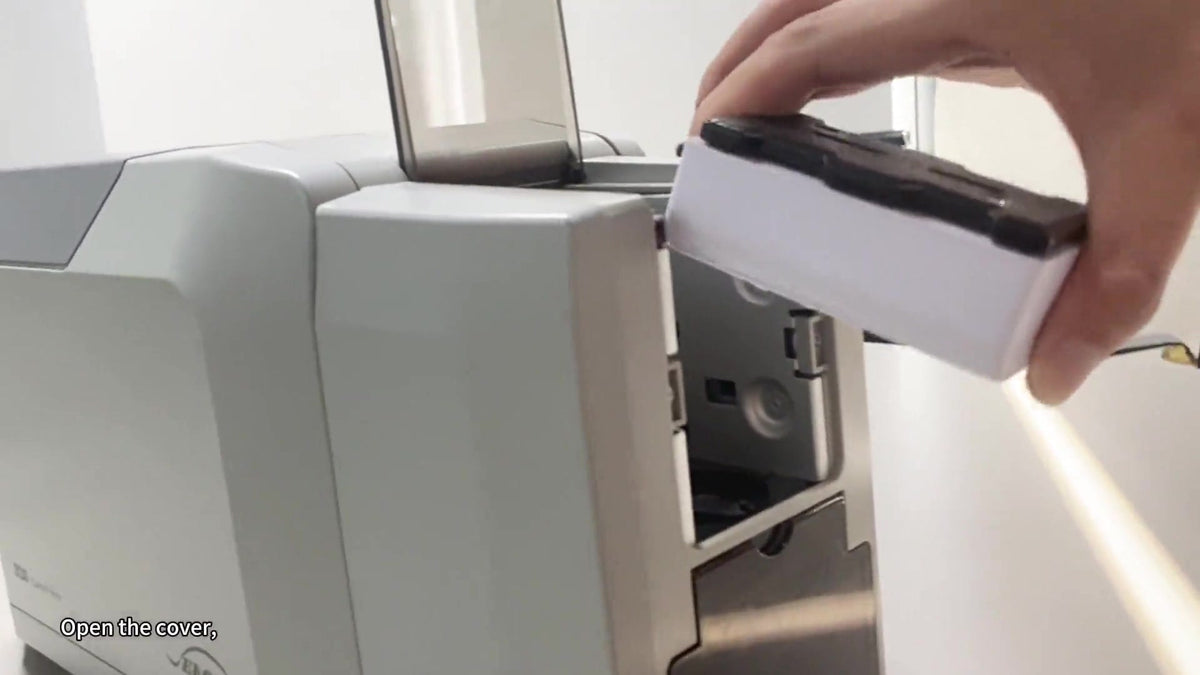
- Fit the detachable input hopper in the position shown.
- Load the card stack into the hopper.
- Place the weight plate on top of the cards.
S28
- Open the built-in input hopper.
- Load the card stack.
- Place its weight plate on top, then close the hopper.
Check feeding
Once the ribbon and driver are ready, print one test card before running a batch.
If an S26 or S28 reports Error 51, use the card-feed troubleshooting guide. For Error 11, choose the instructions for your model: S25, S26 or S28.
For downloads and model instructions, visit S25 support, S26 support or S28 support.
Need help? Email support@bodno.com or call (732) 987-5300 with your printer model and the message you see.
Pick your printer and we show the ribbons, cards and cleaning kits made for it.