


 Standard Blank PVC Cards
 Mylar Adhesive-Backed Cards
  Proximity Cards (Nomativ)
  NTAG Cards
  Software
 Upgrades
 Bodno Trial
 Renew
Renew Ben King
 Benjamin Cohen
 Ciara Uychoco
 Eli Feig
 Jack Richter
 TotalCare
 Self Serve
 Printer Setup
 License Status
 Find My Activation Code
Your Cart is Empty.
Let’s Find Your Perfect Printer!
Free Shipping Over $100

Free Shipping Over $100
Retransfer Printers – Ultra-sharp, edge-to-edge. Shop Now →


Used by 75,000+ businesses
Lifetime expert support included
Over 50 million cards printed
Your Cart (0)
Your Cart is Empty.
Let’s Find Your Perfect Printer!
Updated September 14, 2026
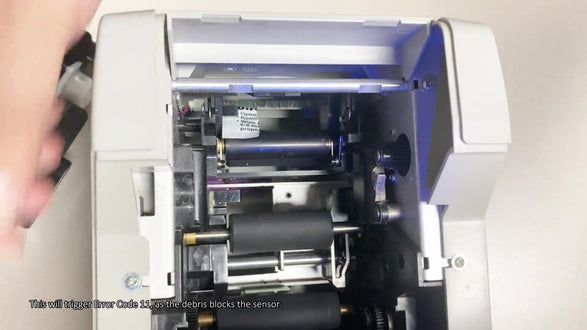
If your Seaory S25 displays CARD JAM — CODE:11, check the sensor area for debris or an obstruction. The video shows where to look after removing the ribbon holder, how to clean the area and how to reassemble the printer. Use this guide for the S25.
Watch this tutorial on YouTube
The S25 uses manual card feeding. Once READY appears, follow the S25 card-loading instructions and print one test card. For routine care, see the Seaory cleaning guide.
Contact Bodno at (732) 987-5300 or support@bodno.com. Include your printer model, a photo of the error message and the checks you completed. You can also open S25 support and downloads.
Shop ID card printers and blank PVC cards at Bodno.
One of our printer specialists will be in touch shortly to discuss your needs and help you find the ideal printer solution
Perfect for beginners in ID card printing. It’s easy to use and includes all the essential tools to create professional-looking cards quickly.
Popular choice for those seeking a more streamlined and efficient card printing process
Powerful choice for those who require advanced customization options and expanded printing capabilities
Offers total control and customization for your ID card printing needs.
Offers advanced features for large teams and high-level ID card printing needs.
Need a tailored ID solution for your organization? Our experts are here to help you choose the best option for your needs
Fill out the quick form below and a Bodno specialist will get in touch to walk you through the best leasing option for your business.
Who are the Ultimate Beneficial Owners (UBOs) for the customer on this Credit Application?
When you provide UBO information, you enable us to comply with Anti Money Laundering regulations. Please provide any UBO information received from your customer.
Review the three UBO types below and select the UBO type for this credit application:
Your personalized quote is on the way!
Bodno TotalCare

5-Year Complete Coverage
Full protection from purchase date
Free 1-Day Shipping Both Ways
Easy and fast repair process
Fast Repair Turnaround
Typically completed in 3 business days
Free Parts & Labor
No hidden costs
Loaner Printer Provided
Your business continues uninterrupted