Bodno A10From $995
 Bodno A20From $1,595
 Bodno A30From $1,995
 Bodno A40 ProFrom $2,995
 vs.
vs.



 CR80 30 mil PVC cardsFrom $3.99
 Adhesive-backed PVC cardsFrom $9.99
 Proximity cards (NoMativ)From $369.00
 NTAG NFC cards, 100 packFrom $59.00
 Buy the softwareDesign and print ID cards on PC and Mac




On this page
Updated September 14, 2026
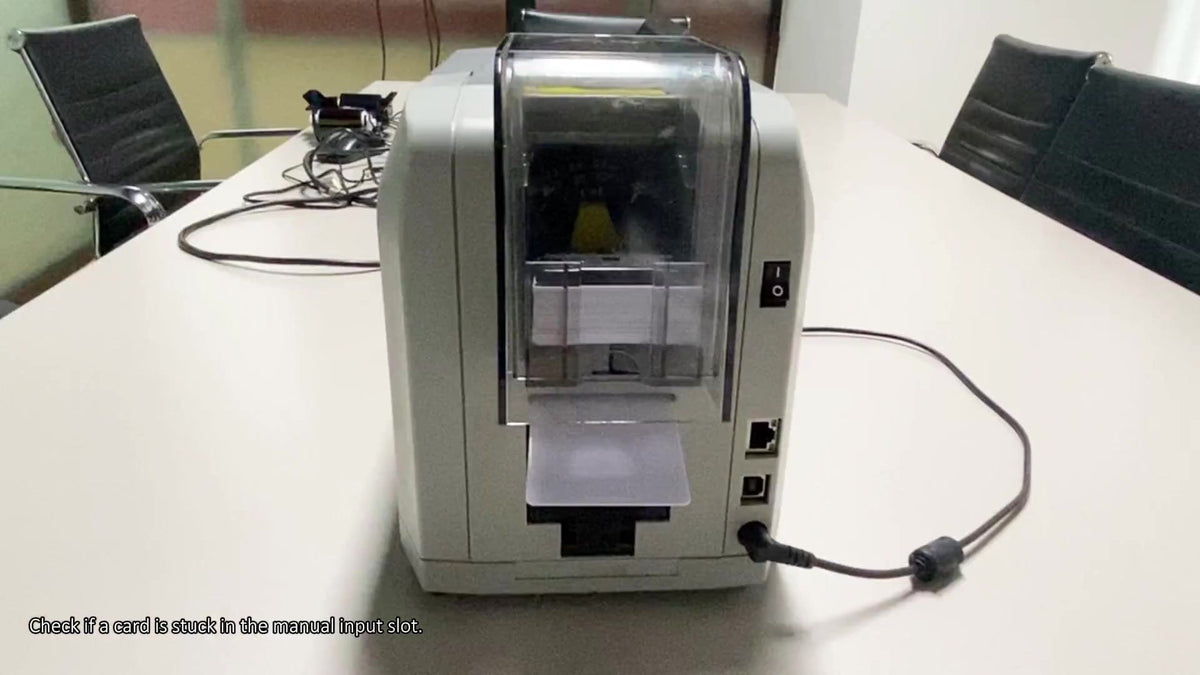
For Error 11 (Card Jam) on the Seaory S26, start with the manual input slot. A trapped card or an obstructed sensor area can be involved. This video demonstrates the S26 slot check and the follow-up cleaning step when no card is visibly stuck.
Watch this tutorial on YouTube
Check the manual input slot
- Inspect the slot shown in the video. Look for a card stuck in the manual input slot. Remove it gently if it is accessible; do not force it.
- Restart and check the display. If the printer returns to READY, print one test card before resuming your badge job.
- If no card is stuck, check the sensor area. Switch the printer off before cleaning. Gently clean the slot’s sensor area with a suitable swab, using the close-up in the video to locate it.
- Restart after cleaning. Check for READY again and run a test print.
Card jam or card feed error?
This procedure covers Error 11. If the display instead shows Error 51 — Card Feed Error, use the S26/S28 feed-troubleshooting guide. For normal loading, follow the S26 section of our card-loading guide; the hopper and weight plate are covered there. The test-card guide explains how to check printer operation from Windows or Mac.
Still seeing the error?
Contact Bodno at (732) 987-5300 or support@bodno.com. Include your printer model, a photo of the error message and the checks you completed. You can also open S26 support and downloads.
Tell our support team your printer model and what you see on the screen, and we'll help you get printing.