Bodno A10From $995
 Bodno A20From $1,595
 Bodno A30From $1,995
 Bodno A40 ProFrom $2,995
 vs.
vs.



 CR80 30 mil PVC cardsFrom $3.99
 Adhesive-backed PVC cardsFrom $9.99
 Proximity cards (NoMativ)From $14.99
 NTAG NFC cards, 100 packFrom $59.00
 Buy the softwareDesign and print ID cards on PC and Mac




On this page
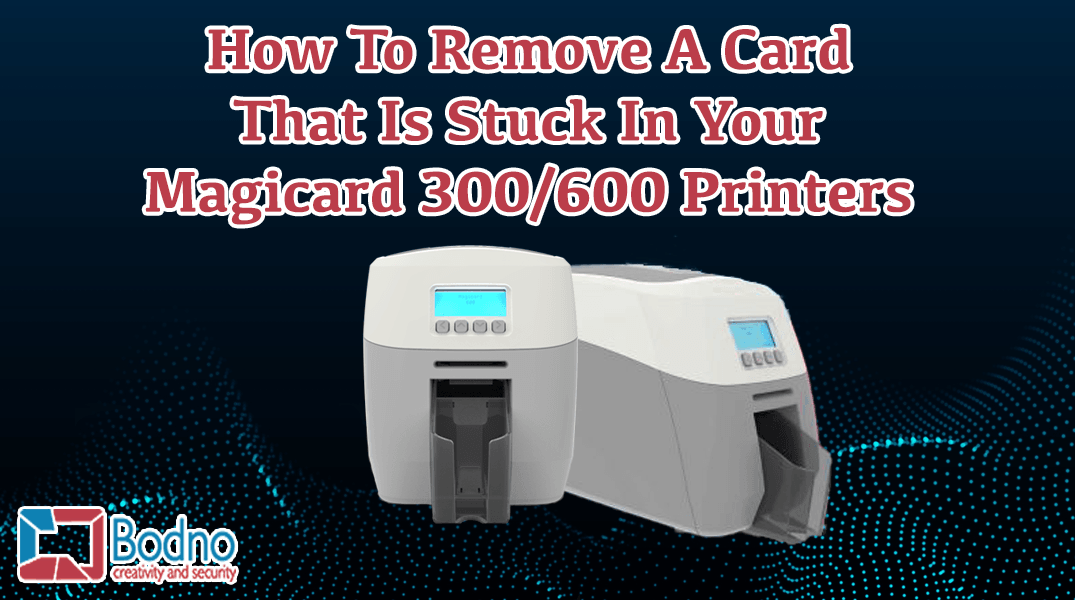
It can be very annoying and inconvenient when your print job is put on hold as a plastic ID card is stuck mid-printing. However, you need to understand that every ID card printer model is different and the steps that you need to follow to remove the stuck plastic card will depend on the type of printer that you use. Shared below are the steps that you need to follow when a card is stuck in your Magicard 300/600 ID card printers.
Machine Ejection After Error Light
Magicard 300/600 printers are direct-to-card printers and are designed to be very user-friendly. Therefore, these printers immediately communicate problems with the users. When a plastic card is stuck in these printers, it is communicated by an error light. In printers with an LCD screen, the error will be displayed on the screen. When you see an error light, you may just press the corresponding button that is placed on the front panel. Doing this will make the printer attempt to eject the card on its own, making this a very easy and convenient fix.
Manual Ejection Using Printer Rollers
If pressing the button to eject the card does not work and the card is still stuck in the printer, you may try to remove the card manually. For this, you can press the top button to unfasten the cover of the printer.
After removing the lid, you can remove the ribbon and carefully place it in an area free of dust to avoid dust damage to the ribbon. You may then remove any ribbon trapped in the inside of the printer. Ensure that it is done gently and avoid the use of any sharp objects. After that, you can press the “Menu” button located on the front panel of the printer to reach the “Turn Rollers'' option. This option can be used to move the internal rollers of the printer backward or forward, thereby moving the plastic card that is stuck in the printer.
When the card is moved, all the rollers in the printer will move, pushing out the card, thereby releasing it. If any more ribbon is trapped in the printer rollers, you can press the “Turn Rollers” button again to pull out the ribbon. You can try pulling out the ribbon while pressing the button. Once the plastic card and loose ribbon are removed, you may repair or replace the ribbon on the take-up spool and then re-insert the same to the ID card printer.
Tell our support team your printer model and what you see on the screen, and we'll help you get printing.