


 Bodno A10From $995
 Bodno A20From $1,595
 Bodno A30From $1,995
 Bodno A40 ProFrom $2,995
 vs.
vs.



 CR80 30 mil PVC cardsFrom $3.99
 Adhesive-backed PVC cardsFrom $9.99
 Proximity cards (NoMativ)From $369.00
 NTAG NFC cards, 100 packFrom $59.00
 Buy the softwareDesign and print ID cards on PC and Mac




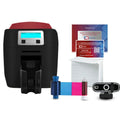
Still running a Matica MC320? Upgrade to the Magicard 400X and get a $300 trade-in rebate for your old printer.

Printer Support › Matica MC320X
Matica MC320X Support
Drivers, firmware, manuals and step-by-step fixes, plus the ribbons and cards that fit this printer.
Matica MC320X Drivers, Firmware & Manuals
Setting up a new computer? Do it in this order. Installing needs an administrator account on a Windows PC (Intel or AMD) or a Mac: what your computer needs.
- Install the printer driverThen connect the printer to your computer and turn it on.
- Install Bodno ID Card SoftwareActivate it with the code from your email.
- Print a test cardConfirms the printer, ribbon and driver all work.
Bodno ID Card Software
Design and print your cards. Already installed? Activation & license help
Latest version 1.7.139 · Windows (including 11) & MacGuides & manuals (PDF)
Unboxing, loading the ribbon and cards, cleaning and settings.
Matica MC320X Fixes & How-To
Find your error code, or pick the topic below. Most problems are sorted in a few minutes.
Works on any ID card printer


Ribbons & Cards for the Matica MC320X
The ribbons, cards and cleaning kits made for this printer. Free shipping on orders of $100 or more.



Matica MC320X FAQ
How do I download and install the Matica MC320X driver?
Use the Printer driver button above for Windows or Mac. Run the installer, then connect the printer by USB and turn it on. When the printer shows up in Printers & scanners, print a test card to confirm everything works.
On a Mac, if the installer will not open, go to System Settings › Privacy & Security and click Open Anyway. Company computers may need IT to allow it.
How do I update the Matica MC320X firmware?
Most printers rarely need it. Update only if our support team asks you to, or to fix a known issue. Download it from Firmware update above, then Devices and Printers › right-click the printer › Printer properties › Tools › Update printer firmware, and follow the wizard.
Do not turn off or unplug the printer while it updates. If you would rather not do it alone, call us and a technician will run it with you over remote support.
Which versions of Windows does the Matica MC320X work with?
All of them, including Windows 11. The Matica MC320X driver and Bodno ID Card Software both work on any version of Windows. Get them from the downloads above.
Does the Matica MC320X work on a Mac?
Yes. Download the Mac driver above. Bodno ID Card Software runs on Mac too.
How do I print a test card?
On the printer: press Menu until you reach Advanced setting, press Select, scroll to Test Print and press Select.
If the test card prints cleanly but your cards do not, the problem is in the software or the card design, not the printer.
Which ribbons and cards does the Matica MC320X use?
Ribbons made for the Matica MC320X:
- Matica MC320 BD32250 Color Ribbon - YMCKO - 250 Prints $119.99
- Matica MC320 BD32100 Color Ribbon - YMCKO - 100 Prints $74.99
- Matica MC320 BD32255 Black Monochrome K Ribbon 2000 Count $99.00
Cards: CR80 PVC cards, 10 to 50 mil, set with the thickness gauge. Most badges are printed on 30 mil cards, like our Bodno CR80 30 mil PVC cards. Keep them in the box until you load them, because dust and fingerprints show up on the print.
Which cleaning kit does the Matica MC320X use, and how often should I clean it?
Clean at every ribbon change. The printer requires it at 1,000 prints and asks for an advanced cleaning every 5,000, and right away if you see specks, dots or lines on your cards.
Which replacement parts can I order for the Matica MC320X?
- Matica MC310 and MC320 BD32003 Duplex Upgrade Kit $295.00
- Matica MC320 Ribbon Cartridge Holder $59.00
Not sure which part you need? Send us a photo and the serial number from the label on the printer.
What can I do from the Matica MC320X Tools tab?
Devices and Printers › right-click the printer › Printer properties › Tools. Pick a wizard from the menu and follow it:
- Clean printer and Advance printer clean
- Activate Duplex printing
- Update printer firmware, LCD firmware and font firmware
- PC/SC encoder check, for smart card encoders
- Printhead replacement
The About tab shows the firmware version installed.
Black text or barcodes aren’t solid black.
Printer properties › Card front › Monochrome option › Resin Area Extraction. Drag over the area in the preview, or set an RGB colour threshold, so it prints with the black resin panel instead of colour. Saved areas stay on, so remove or adjust them before printing a different design.
What do the lights on the Matica MC320X mean?
- Ready light green: ready. Green blinking: receiving a job.
- Ready light amber: the ribbon is nearly used up. Amber blinking: no cards or no ribbon.
- Error light red: an error, such as a card jam or the cover open. The screen says which.
- Error light red blinking: the printer needs servicing or a firmware update.
Short press the power button to turn it on, long press to turn it off. The Menu button scrolls the screen menu and the Select button opens an item.
How do I set up the Matica MC320X on our network?
Automatic address (DHCP): run the Matica driver installer and tick Add a printer connected through the network. Restart the computer when asked, plug in the network cable, turn the printer on and choose DHCP.
Fixed address: install the driver over USB first, then connect the network cable as well and restart the printer. In Devices and Printers, right-click the printer › Printer properties › Network tab. Note the IP address, turn DHCP off, enter the IP address and gateway from your IT team, then click Apply and OK.
When and how do I clean the Matica MC320X?
- Standard cleaning: at every ribbon change. The screen asks for it at 1,000 prints (amber light), and at 1,200 it becomes mandatory (red light). Printer properties › Tools › Clean printer, and follow the wizard with the long cleaning card.
- Advanced cleaning: every 5,000 prints. Printer properties › Tools › Advance printer clean, with the T-card fed into the slot at the back.
Skipping the required cleanings can void the warranty.
The card gets stuck, the ribbon tears, or I see error 14.
Turn the printer off, then check:
- The card thickness setting matches your cards (the printer takes 10 to 50 mil).
- The weight in the input hopper is sitting on the cards.
- The cleaning roller is in its place.
- No ribbon pieces or cards are left in the card path or the flipper.
Turn it back on and print again. A blank card usually means the ribbon’s ID chip is damaged. Change the ribbon.
Can the Matica MC320X print on both sides?
Yes, with the duplex activation kit. Printer properties › Tools › Activate Duplex printing, then follow the wizard. Turn the printer off and on afterward, and set two-sided printing in the driver.
My cards have lines, dots or the colours look off.
- Lines across the card: clean the printhead with a swab or cleaning pen.
- Dots: the cleaning roller is dirty. Rinse it with water and let it dry.
- Colours: adjust Brightness, Contrast and Sharpness under the colour settings in Printer properties.
I have a new computer. What do I install?
Three things, in this order: the printer driver, Bodno ID Card Software, then a test card. Activate the software with the code from your purchase email. If activation does not go through, see Activation & license help or call us.
What should I send support so they can help fast?
- Your printer model and the serial number from the label on the printer
- A photo of the card or the error message
- Windows or Mac, and which version
- USB or Ethernet
- Your order number, so we can check your coverage, including TotalCare
Talk to a Bodno Technician
Real people who set up these printers every day. Tell us what you see and we'll walk you through it on your Matica MC320X.
Call, email or share your screen
Pick whichever is easiest. Phone is fastest.
Send us your question
Include your printer model, and a photo of the card or error message if you can.
