


 Bodno A10From $995
 Bodno A20From $1,595
 Bodno A30From $1,995
 Bodno A40 ProFrom $2,995
 vs.
vs.



 CR80 30 mil PVC cardsFrom $3.99
 Adhesive-backed PVC cardsFrom $9.99
 Proximity cards (NoMativ)From $14.99
 NTAG NFC cards, 100 packFrom $59.00
 Buy the softwareDesign and print ID cards on PC and Mac




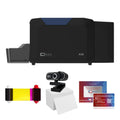
Still running a Zebra ZC100? Get a $300 trade-in rebate — your Bodno A30 comes to $1,695.
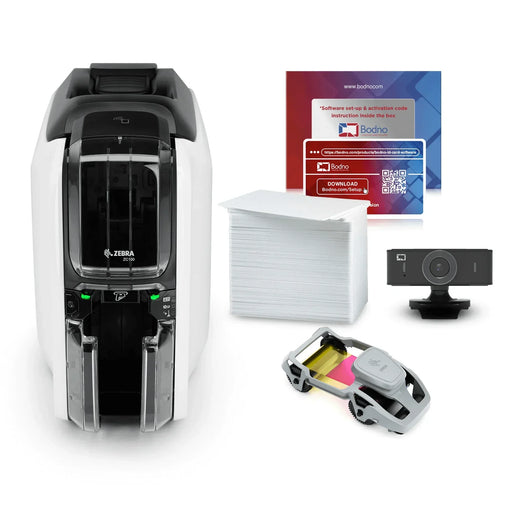
Printer Support › Zebra ZC100
Zebra ZC100 Support
Drivers, firmware, manuals and step-by-step fixes, plus the ribbons and cards that fit this printer.
Zebra ZC100 Drivers, Firmware & Manuals
Setting up a new computer? Do it in this order.
- Install the printer driverThen connect the printer to your computer and turn it on.
- Install Bodno ID Card SoftwareActivate it with the code from your email.
- Print a test cardConfirms the printer, ribbon and driver all work.
Bodno ID Card Software
Design and print your cards. Already installed? Activation & license help
Latest version 1.7.139 · Windows (including 11) & MacGuides & manuals (PDF)
Unboxing, loading the ribbon and cards, cleaning and settings.
Zebra ZC100 Fixes & How-To
Find your error code, or pick the topic below. Most problems are sorted in a few minutes.
Works on any ID card printer


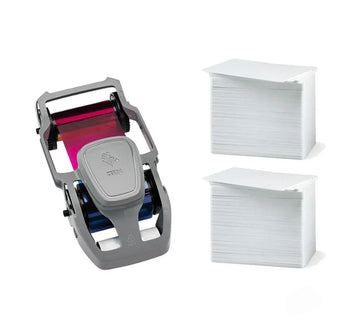
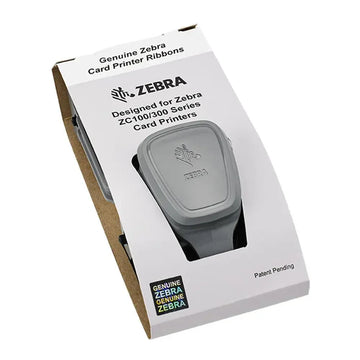
Ribbons & Cards for the Zebra ZC100
The ribbons, cards and cleaning kits made for this printer. Free shipping over $100.
Have an older printer in the office?
Trade in any brand, working or not, for up to $600 back on a new printer.
Zebra ZC100 FAQ
How do I download and install the Zebra ZC100 driver?
Use the Printer driver button above for Windows or Mac. Run the installer, then connect the printer by USB and turn it on. When the printer shows up in Printers & scanners, print a test card to confirm everything works.
On a Mac, if the installer will not open, go to System Settings › Privacy & Security and click Open Anyway. Company computers may need IT to allow it.
How do I update the Zebra ZC100 firmware?
Most printers rarely need it. Update only if our support team asks you to, or to fix a known issue. Download it from Firmware update above, keep the printer turned on and connected by USB, and follow the instructions that come with the download.
Do not turn off or unplug the printer while it updates. If you would rather not do it alone, call us and a technician will run it with you over remote support.
Which versions of Windows does the Zebra ZC100 work with?
All of them, including Windows 11. The Zebra ZC100 driver and Bodno ID Card Software both work on any version of Windows. Get them from the downloads above.
Does the Zebra ZC100 work on a Mac?
Yes. Download the Mac driver above. Bodno ID Card Software runs on Mac too.
How do I print a test card?
Most card printers print a test card from the driver: open Printers & scanners, select the printer and open Printing preferences. The User Manual above shows the exact steps for the Zebra ZC100. If you cannot find it, call us and we will walk you through it.
If the test card prints cleanly but your cards do not, the problem is in the software or the card design, not the printer.
Which ribbons and cards does the Zebra ZC100 use?
Ribbons made for the Zebra ZC100:
- Zebra 800100-150 Color Ribbon for ZC100 - YMCKO - 200 prints $99.99
- Zebra 800300-301 Black Monochrome Ribbon - K - 2,000 prints $99.00
Cards: CR80 PVC cards. Most badges are printed on 30 mil cards, like our Bodno CR80 30 mil PVC cards. Keep them in the box until you load them, because dust and fingerprints show up on the print.
Which cleaning kit does the Zebra ZC100 use, and how often should I clean it?
The printer reminds you every 1,000 cards by default, and right away if you see specks, dots or lines on your cards.
What do the lights on the Zebra ZC100 mean?
- Card light: blinking red means a card jam, solid red means out of cards.
- Ribbon light: solid amber means the ribbon is low, blinking red means it ran out, jammed or broke, solid red means the ribbon isn’t accepted.
- Clean light: solid amber means cleaning is due, solid red means a cleaning error or the reject bin is full.
- Manual feed light: solid green means it is waiting for a card or cleaning card, solid red means a card insert error.
- Power light: blinking green while it starts up, solid red for a critical error. Turn it off and on, and contact us if it stays red.
How do I clear a card jam on the Zebra ZC100?
- Open the printer and take out the ribbon cartridge.
- Turn the manual advance wheel toward the front of the printer until the card comes out.
Don’t use tools to pull a stuck card. That can damage the printer.
How do I connect the Zebra ZC100 to our network?
Plug in the network cable, and keep USB connected while you change settings. In Printing Preferences open Advanced › Connectivity. The Wired section shows whether the printer is connected and its IP address. To set a fixed address, turn DHCP off and enter the IP address, subnet and gateway from your IT team.
Then on each computer, run the Zebra driver installer, choose Modify › Install Ethernet printer drivers, and pick the printer from the list. If it isn’t listed, type its IP address.
Wi-Fi models: in the same Connectivity tab, open Wireless, turn the radio on, choose your network, enter the password and click Apply. Keep the printer near the access point and away from metal cabinets and microwaves.
How do I run a cleaning on the Zebra ZC100?
In Printing Preferences, open the Help & Support tab and click Clean under Cleaning. Take the ribbon and cards out when asked, then feed the cleaning card into the manual feed slot. The printer asks for a cleaning every 1,000 cards by default.
For stubborn marks, turn the printer off, wipe the printhead side to side with an alcohol swab, and let it dry two to three minutes before turning it back on.
My cards have spots, smears or muddy black text.
- Spots or specks: replace the cleaning roller and run a cleaning.
- Image shifted on the card: use the Print Position adjustment in the driver.
- Dark colours smearing into light ones: lower the Preheat value under Color Optimization.
- Black text looks muddy: it is printing with colour instead of the black panel. Adjust K Extraction in the driver, and keep black in your design at or below RGB 25, 25, 25.
- Colour streaks from the card edge, or colours out of line: contact us.
I have a new computer. What do I install?
Three things, in this order: the printer driver, Bodno ID Card Software, then a test card. Activate the software with the code from your purchase email. If activation does not go through, see Activation & license help or call us.
What should I send support so they can help fast?
- Your printer model and the serial number from the label on the printer
- A photo of the card or the error message
- Windows or Mac, and which version
- USB or Ethernet
- Your order number, so we can check your coverage, including TotalCare
Talk to a Bodno Technician
Real people who set up these printers every day. Tell us what you see and we'll walk you through it on your Zebra ZC100.
Call, email or share your screen
Pick whichever is easiest. Phone is fastest.
Send us your question
Include your printer model, and a photo of the card or error message if you can.
