Bodno A10From $995
 Bodno A20From $1,595
 Bodno A30From $1,995
 Bodno A40 ProFrom $2,995
 vs.
vs.



 CR80 30 mil PVC cardsFrom $3.99
 Adhesive-backed PVC cardsFrom $9.99
 Proximity cards (NoMativ)From $369.00
 NTAG NFC cards, 100 packFrom $59.00
 Buy the softwareDesign and print ID cards on PC and Mac





On this page
Here is the whole first day, in order: register the printer, plug it in, install two programs, load the ribbon and cards, and print. Registration takes about two minutes, and most people print their first card in 30 minutes or less.
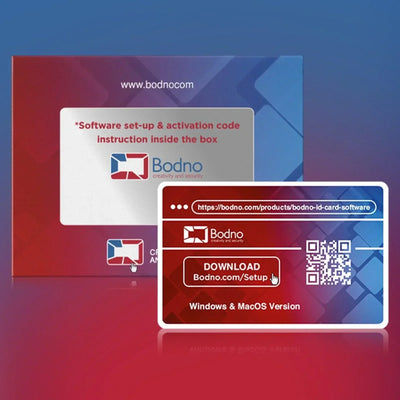
Register at bodno.com/setup to get your activation code. Install the printer driver from your printer's support page, then Bodno ID Card Software. Activate the code, load the ribbon and cards, open a template and print.
Set up and print
Go to bodno.com/setup. You need the serial number (on the label on the back or underside of the printer) and your order number (Bodno or Amazon). Click Register & Continue. Your activation code is created here and emailed to you. Trouble? See serial number and "Order not found".
Keep the box; you need it if the printer ever goes in for service. Plug the printer into a wall outlet, not a surge protector or power strip, and use the power cord, adapter and USB cable that came with it.
There's no CD. Download the driver and Bodno software from bodno.com/pages/setup or your printer's page in printer support, then run the driver installer. You need administrator rights; on a company computer, ask IT. Before you start, check what your computer needs. Install the driver before connecting the USB cable unless the installer says otherwise.
- Windows in S mode can't install printer drivers. Switch out of S mode (Settings › System › Activation › Switch out of S mode; free) or ask IT.
- Plug the USB straight into the computer, not a hub, dock or adapter.
Open Bodno and go to:
Paste the code from step 1, click Activate and restart Bodno. Without a code Bodno still works, but cards print with a watermark.
Load the ribbon as shown in your printer's guide. Hold the cards by the edges, fan the stack, and load them printable side up.
In Bodno click New Card and start from a blank card or a template. Add a logo or photo (JPG or PNG) and text such as name and title. Keep backgrounds light so text is easy to read. Save it with File › Save. Want a head start? Browse the free ID badge templates.
Print one card. If it comes out clean, you are set up. If you see an error code, look it up on your printer's support page.
Next: photos and name lists
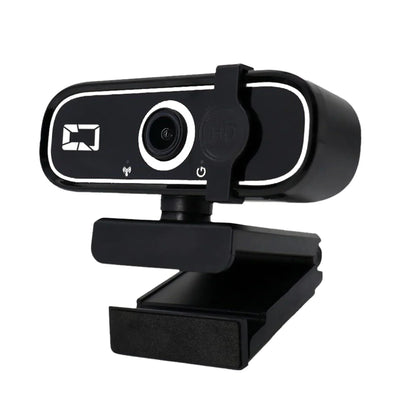
- Photos: use any JPG or PNG, or take them at the desk with the Bodno A11 photo ID camera, which plugs in by USB with no driver.
- Printing a list from Excel (Silver edition and up): close the Excel file, then in Bodno choose Connect to Database › Direct Excel File Driver, pick the sheet and header row, and drag the columns (name, ID number, photo) onto the card.
First-day problems we see most
| Problem | Fix |
|---|---|
| No order number to register | Ask whoever bought the printer, or use Find my activation code |
| Registration says "Order not found" | See serial number and "Order not found" |
| The printer does not show up | Install the driver first and use the original USB cable, plugged straight into the computer, not a hub, dock or adapter. Magicard? Magicard not detected. Windows says offline? Printer offline fixes |
| Activation code did not arrive | Check spam, then Find my activation code |
| Cards print with a watermark | Demo mode and watermark fixes |
| Ribbon error 48 on a Seaory or Bodno A-Series | Follow the Seaory or A-Series error 48 guide |
Want a hand?
Call us while you set up and we will walk you through it.
- Have the printer model and serial number ready
- Sit at the computer that will print the cards
Reviewed by Bodno Tech Support, based on real support cases. Updated October 14, 2026.
Did this fix it?
Still having trouble? Let us take it from here.
Leave your details and tell us what's happening. The CEO's office will have a senior member of our support team reach out to you. It isn't instant, so if it can't wait, call (732) 987-5300, Monday to Friday, 9 AM to 6 PM ET.
Download it, activate it, or add another license. Activation codes arrive by email in 15 minutes.