Bodno A10From $995
 Bodno A20From $1,595
 Bodno A30From $1,995
 Bodno A40 ProFrom $2,995
 vs.
vs.



 CR80 30 mil PVC cardsFrom $3.99
 Adhesive-backed PVC cardsFrom $9.99
 Proximity cards (NoMativ)From $369.00
 NTAG NFC cards, 100 packFrom $59.00
 Buy the softwareDesign and print ID cards on PC and Mac




On this page
Updated October 12, 2026
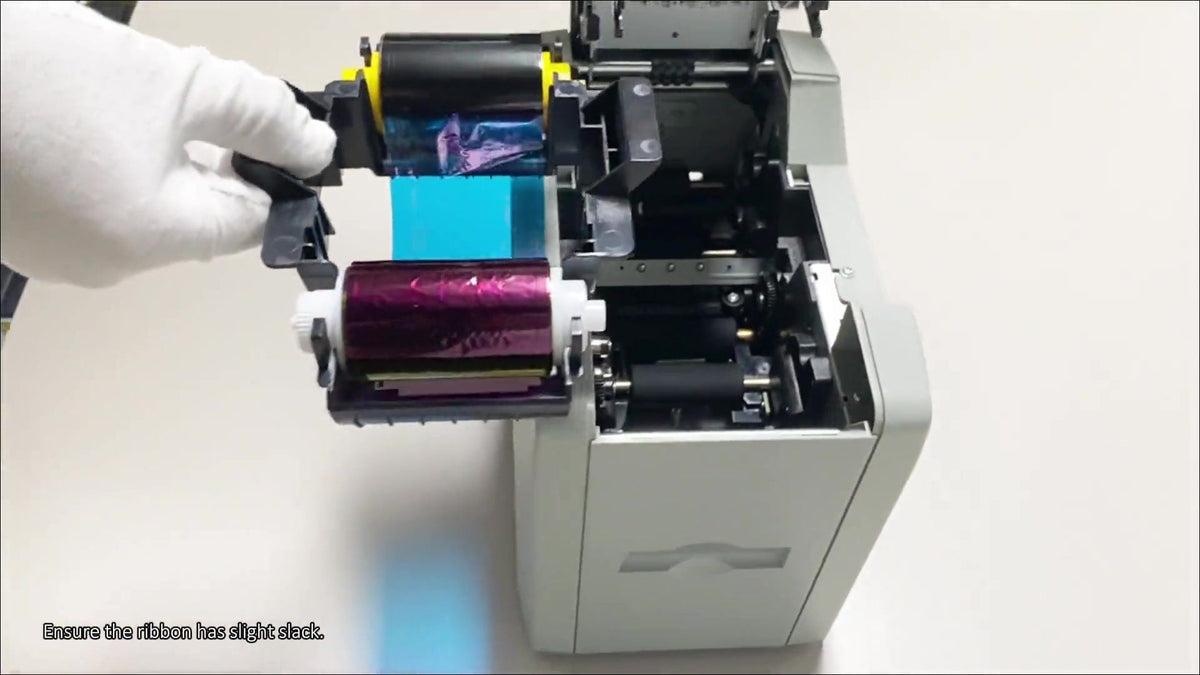
To install a Seaory S25, S26 or S28 ribbon, seat the ribbon spools in the holder, return the holder to the printer and close the cover. The short video shows the holder and spool positions.
Choose your color ribbon
| Printer | Compatible color ribbon |
|---|---|
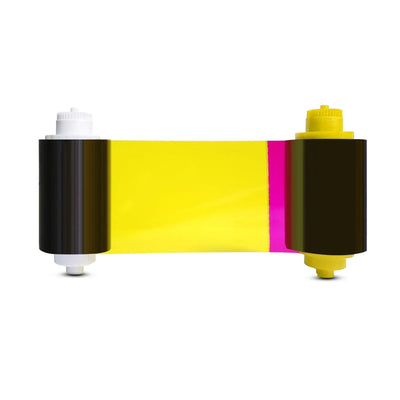
| Seaory S25 | Seaory 11011 YMCKO |
| Seaory S26 / S28 | Seaory 17031 YMCKO |
New printer? Put the cleaning roller in first
The cleaning roller comes in the box with the printer. It wipes dust off every card before it reaches the printhead, so install it before the ribbon. Skipping it leads to specks and lines on cards.
- Open the printer cover and find the cleaning roller position (photo below).
- Peel the clear 3M plastic backing off the roller. Hold it by the ends; the sticky surface should not touch anything.
- Seat the roller until it sits flat in its position.
- Now install the ribbon as shown below.


When it turns grey or stops feeling tacky, replace it with a 16100 cleaning roller. More in the cleaning guide.
Install the ribbon
- Open the cover and lift out the ribbon holder.
- Remove the used ribbon, if present. Match the new ribbon’s spool ends to the corresponding positions in the holder, as shown in the video.
- Seat both spools fully. Check that the ribbon lies flat between them and is not twisted.
- Return the holder to its guides and make sure it sits correctly.
- Close the printer cover.
Test before printing a batch
Load cards using your model’s feed method, then print one driver test card. Check the printed card and printer display before sending more jobs.
If the display shows Error 48, follow the ribbon troubleshooting guide. If the ribbon is physically torn, see the broken-ribbon guide; this installation video does not show ribbon repair.
A ribbon change is also a useful time to clean your Seaory printer with the appropriate supplies.
Need help? Email support@bodno.com or call (732) 987-5300 with your printer model and the message you see.
Pick your printer and we show the ribbons, cards and cleaning kits made for it.