Bodno A10From $995
 Bodno A20From $1,595
 Bodno A30From $1,995
 Bodno A40 ProFrom $2,995
 vs.
vs.



 CR80 30 mil PVC cardsFrom $3.99
 Adhesive-backed PVC cardsFrom $9.99
 Proximity cards (NoMativ)From $369.00
 NTAG NFC cards, 100 packFrom $59.00
 Buy the softwareDesign and print ID cards on PC and Mac





On this page
Bodno A-Series Help · Print quality
Colored lines, pale cards and colors that come out wrong feel like three problems. On an A-Series printer they share one first step, and most are settled with a setting rather than a part.
Print the test chart. Streaks: ribbon supply tension −3 for lines across the middle, +3 for lines at the edges. Pale: cleaning card, fresh ribbon, default image color. Wrong colors: default image color, then send us the file. Chip cards: heating energy −50.
Is it the printer or the design?
Print the test chart. It takes your design software out of the picture.
Where:Printing Preferences › Tool › Position Calibrate › Print Test ChartChart looks good but your card does not: the printer is fine and the fix is in your file or a setting. Chart looks bad too: it is the ribbon, the cleaning or the cards.
Find what you see
AColored lines: tension
Lift the cartridge and check the film is wound straight on both spools; a ribbon that shifted in shipping streaks on its own. Then change tension one step at a time:
Where:Printing Preferences › Tool › Ribbon supply tensionWhere the lines sit on the card tells you which way to go:
If the lines come back after a few cards either way, set it back to 0 and contact us.
BLines in dark areas only
Ease tension (Fix A), then turn on Rotate 180° and print again. If you can, lighten the background slightly or give it a subtle texture. Turning the heat down removes the lines but makes the whole card paler; if you are stuck between the two, send us the file.
CPale or washed out
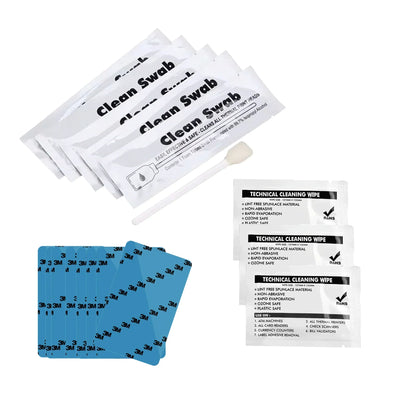
- Run the cleaning card from the BB001 kit.
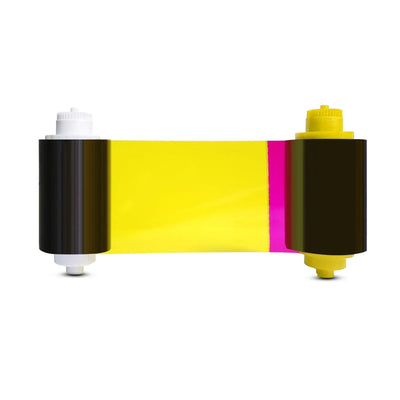
- Use a ribbon that matches the model and is not years old: A5100 for the A10, A5300 or A5500 for the larger models.
- Reset image color to default.
- Print on a fresh card from a new pack.
- Still pale? Raise the heating energy a few steps (Printing Preferences › Tool › Heating energy). If cards turn dark or the ribbon starts to stick, press Reset to go back to the factory setting.
A brand-new printer that prints a pale test chart needs a look from us, not more settings.
DWrong colors
Reset image color to default and print again. If a color is still off, it is usually the file: save it in RGB, keep photos at full resolution, and on an A40 Pro print at 300 × 600 for photo-heavy cards. Send the file and we will match the color with you on a short screen-share.
EChip and prox cards
The chip makes the surface uneven and the default heat is set for plain PVC. Start at heating energy −50 and ribbon supply tension −3, then adjust. If you print chip cards every day, a retransfer printer gives a cleaner result on them.
FPrint transferring to the sleeve
Vinyl badge holders can lift dye off the card. Switch to PP or PETG sleeves.
One change at a time. Change one setting, print one card, look at it. Three changes at once leaves you with a setting nobody remembers next month.
Parts for this fix
Reviewed by Bodno Tech Support, based on real A-Series support cases. Last reviewed October 2026.
Did this fix it?
Still having trouble? Let us take it from here.
Leave your details and tell us what's happening. The CEO's office will have a senior member of our support team reach out to you. It isn't instant, so if it can't wait, call (732) 987-5300, Monday to Friday, 9 AM to 6 PM ET.
Tell our support team your printer model and what you see on the screen, and we'll help you get printing.