Bodno A10From $995
 Bodno A20From $1,595
 Bodno A30From $1,995
 Bodno A40 ProFrom $2,995
 vs.
vs.



 CR80 30 mil PVC cardsFrom $3.99
 Adhesive-backed PVC cardsFrom $9.99
 Proximity cards (NoMativ)From $369.00
 NTAG NFC cards, 100 packFrom $59.00
 Buy the softwareDesign and print ID cards on PC and Mac





On this page
Bodno A-Series Help · Print quality
The card goes in, the ribbon moves, and the card comes out with nothing on it. It feels like a dead printhead, but it is usually a setting, and four quick checks find it.
Print the test chart. If it is blank, reset Position Calibrate to factory default. Look at the used ribbon to see whether the image is on it. If the chart prints but your cards do not, check the printer you are sending to and reinstall the driver.
Check 1: does the test chart print?
Where:Printing Preferences › Tool › Position Calibrate › Print Test ChartThis prints straight from the driver, without your card software. If the chart prints normally, skip to check 4.
Check 2: reset the print position
A blank chart usually means the print position has been moved so far that the image lands off the card. We have seen it after L was set to −2 to hide a thin white edge.
Where:Printing Preferences › Tool › Position Calibrate › Reset to factory defaultPrint the chart again. When it prints, fine-tune L or T one step at a time with a test card in between.
Check 3: look at the used ribbon
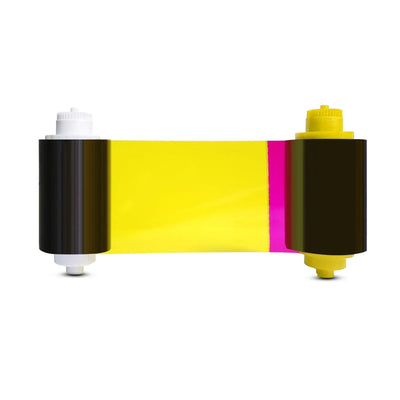
Lift the cartridge out and look at the panels that just went past the printhead.
Check 4: the chart prints, your cards do not
- Make sure you are sending to the A-Series printer and not a copy of it or the office printer.
- If the first card prints and the rest come out blank or doubled, contact us; it is a connection inside the printer.
- Reinstall the driver: uninstall it, restart the computer, install it fresh from your A10, A20, A30 or A40 Pro support page.
If the chart is still blank after a factory reset, the printhead or its bracket needs reseating. We do that with you on a video call or arrange a repair. Opening it yourself risks turning a quick fix into a printhead replacement.
Parts for this fix
Write to us with these and we can answer the same day
Most cases go back and forth an extra time only because we have to ask for these. Put them in your first message:
- The serial number from the label on the back of the printer
- Your model: A10, A20, A30 or A40 Pro
- A screenshot of the printer information screen in the driver (it shows the firmware and driver version)
- A photo of the test chart (blank or not)
- A photo of the used ribbon panels
- Whether you recently updated firmware or changed position settings
Reviewed by Bodno Tech Support, based on real A-Series support cases. Last reviewed October 2026.
Did this fix it?
Still having trouble? Let us take it from here.
Leave your details and tell us what's happening. The CEO's office will have a senior member of our support team reach out to you. It isn't instant, so if it can't wait, call (732) 987-5300, Monday to Friday, 9 AM to 6 PM ET.
Tell our support team your printer model and what you see on the screen, and we'll help you get printing.