Bodno A10From $995
 Bodno A20From $1,595
 Bodno A30From $1,995
 Bodno A40 ProFrom $2,995
 vs.
vs.



 CR80 30 mil PVC cardsFrom $3.99
 Adhesive-backed PVC cardsFrom $9.99
 Proximity cards (NoMativ)From $369.00
 NTAG NFC cards, 100 packFrom $59.00
 Buy the softwareDesign and print ID cards on PC and Mac





On this page
If you bought your printer from Bodno on Amazon, you will not find an activation code card in the box. Your Bodno ID Card Software code is created when you register the printer. It takes about two minutes, and the code shows on screen the moment you finish.
Bought on Amazon and stuck? Our Amazon help page walks through every step.
Go to bodno.com/setup, choose Purchased From: Amazon, type your Amazon order ID with the dashes and your printer serial number, and click Register & Continue. Your code appears on screen and is emailed to you.
Register and get your code
It is printed on the packing slip in the box, on the line that starts "Your order of". You can also find it in Amazon under Your Orders. The order ID is three groups of numbers with dashes, like 111-2223334-4445556. Copy it exactly, dashes included.
It is on the label on the back or underside of the printer. Not sure which number it is? See where to find your serial number.
Go to bodno.com/setup and fill in your name, phone, email, printer serial number and address. Set Purchased From to Amazon and paste the order ID into Order Number. Then click Register & Continue.
Your activation code shows on screen and is emailed to you. Code email not arriving? Check spam or junk. Save the email; you will need the code again if you ever change computers.
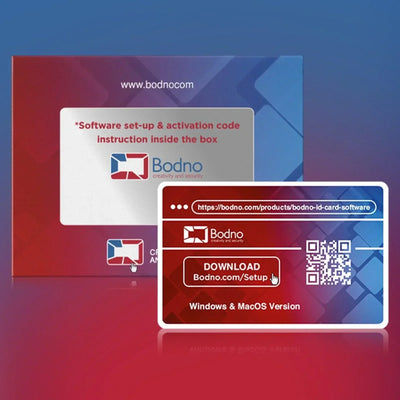
Download Bodno for Windows or Mac, install it, then go to:
Paste the code, click Activate and restart Bodno. New to the printer? Follow your first ID badge, step by step.
If it says "Order not found"
| What happened | What to do |
|---|---|
| Order ID typed without dashes | Type it exactly as Amazon shows it, with dashes and no spaces |
| A purchase order, invoice or tracking number was entered | Use the Amazon order ID from the packing slip or Your Orders |
| Purchased From was left on the wrong store | Pick Amazon for Amazon orders, Bodno for bodno.com orders |
| Bought on Amazon outside the US | Email us your Amazon invoice and serial number |
| Bought used, or from a different seller | Contact us. Licenses come with printers sold by Bodno |
Still not working? Email support@bodno.com a screenshot of your Amazon invoice and a photo of the serial number label. We register it for you and send the code. More fixes: serial number and "Order not found".
Each printer gets its own code. Register each printer with its own serial number. If you get stuck, email us the order ID and all the serial numbers and we will send every code.
If an office, HR or a purchasing desk placed the order, check the box first. The order number is on the packing slip. Box gone? Ask them for the Amazon order number or the packing slip. Our Amazon help page has a ready-made message you can copy and send them.
Send these and we will register it for you
Most Amazon registration problems are solved in one email when we have these.
- A screenshot of your Amazon invoice or order page
- A photo of the printer's serial number label
- Your name, email and phone, and the organization name if there is one
Reviewed by Bodno Tech Support, based on real support cases. Updated October 14, 2026.
Did this fix it?
Still having trouble? Let us take it from here.
Leave your details and tell us what's happening. The CEO's office will have a senior member of our support team reach out to you. It isn't instant, so if it can't wait, call (732) 987-5300, Monday to Friday, 9 AM to 6 PM ET.
Download it, activate it, or add another license. Activation codes arrive by email in 15 minutes.