


 Bodno A10From $995
 Bodno A20From $1,595
 Bodno A30From $1,995
 Bodno A40 ProFrom $2,995
 vs.
vs.



 CR80 30 mil PVC cardsFrom $3.99
 Adhesive-backed PVC cardsFrom $9.99
 Proximity cards (NoMativ)From $14.99
 NTAG NFC cards, 100 packFrom $59.00
 Buy the softwareDesign and print ID cards on PC and Mac





On this page

You can link a photo to each record in your database. Bodno reads the image file name from a database column and shows the matching photo on each card. Linking images to a database field needs the Silver edition or higher.
Before you start, put all the images in the same folder on your computer, and make sure your database has an empty column for the image. First time connecting a database? See how to connect to an Excel database.
Set up the image column
Click the button with three dots on the left of the column name where the image will be stored. This opens the column properties.

Set the properties below, then refresh the connection at the end.
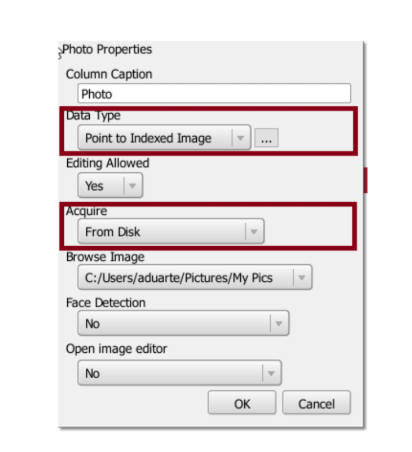
1- Set the Data Type to Indexed Image and click the button with three dots on its right side.
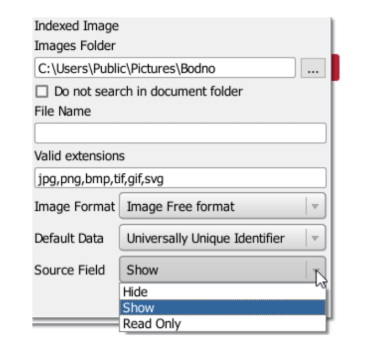
2- In the Image Folder area, browse to the folder where the images are saved. Leave the File Name box empty. Click OK.
3- Set Acquire to From Disk. If you don't plan to use Face Detection or Open image editor, set them to No. Click OK.
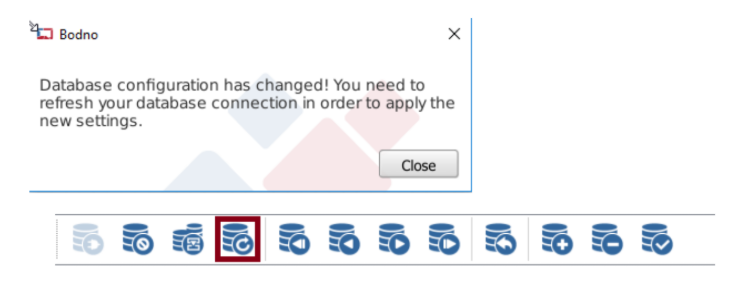
4- Refresh the database connection when prompted.
Link a photo to a record
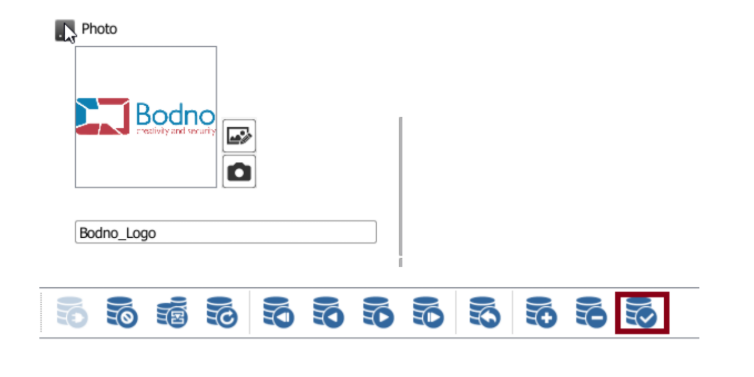
In each record, type the exact image file name in the image column, save the record, and refresh the database connection.
Need help? Contact Bodno support or call (732) 987-5300.
Download it, activate it, or add another license. Activation codes arrive by email in 15 minutes.
