Bodno A10From $995
 Bodno A20From $1,595
 Bodno A30From $1,995
 Bodno A40 ProFrom $2,995
 vs.
vs.



 CR80 30 mil PVC cardsFrom $3.99
 Adhesive-backed PVC cardsFrom $9.99
 Proximity cards (NoMativ)From $14.99
 NTAG NFC cards, 100 packFrom $59.00
 Buy the softwareDesign and print ID cards on PC and Mac




On this page
Bodno A-Series Help · Setup
Getting an A-Series printer talking to your computer takes one driver install. The A20, A30 and A40 Pro can also go on the office network so several computers share one printer.
Download the driver and firmware for your model from its support page and connect by USB. For Ethernet (A20, A30, A40 Pro), set the address in the driver network settings, then add the printer on each computer; on a Mac use the printer IP followed by :5352.
Install the driver
Download the driver for your exact model and operating system from your A10, A20, A30 or A40 Pro support page. Once the driver is installed and the printer is connected, update its firmware from the same page before you print real cards. Every new printer needs this step; see the firmware update guide.
WWindows
- Run the installer and follow the prompts.
- Connect the printer by USB and turn it on.
- Check that it appears in Printers & scanners, then print the test chart.
MMac (macOS 12 or newer)
- Open the downloaded package and run the installer.
- If the Mac will not open it, go to System Settings › Privacy & Security and click Open Anyway. Company Macs may need IT to allow it.
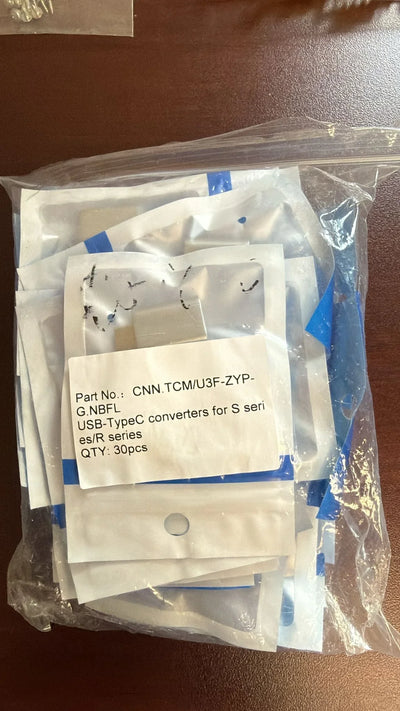
- Newer Macs only have USB-C ports; the A-Series USB-C converter connects the printer cable.
If the computer will not see the printer
Put an A20, A30 or A40 Pro on your network
- Cable it. Plug an Ethernet cable from the printer into your switch or router, and keep the USB cable connected for setup.
- Give it an address. In the driver's network settings, either let the printer get an address automatically, or enter the static IP address, subnet mask and gateway your IT team gives you. Apply, then unplug USB.
- Add it on each computer. On Windows, run the driver installer again and use its network search to find and add the printer. On a Mac: System Settings › Printers & Scanners › Add Printer › IP tab. Address: the printer's IP followed by :5352. Protocol: HP Jetdirect – Socket. Use: select the A-Series driver for your model.
- Print the test chart from each computer.
The Ethernet light stays orange while the printer is idle and turns green when a job arrives. An orange light alone does not mean the connection failed; it usually means the printer has not been added on the computer yet.
Two messages people run into
"Attention Required" when printing a PDF
Printing straight from Adobe Acrobat can lock the page to letter size and scale the card to several hundred percent. Print from Bodno ID Card Software instead, or open the PDF in Microsoft Edge and print from there. If the printer ran out of ribbon in the middle of a batch, clear the print queue and turn the printer off and on before you start again.
"Ribbon not supported"
Ribbons are matched to the region the printer was built for. A ribbon from another seller can be the right size and still be refused. Use ribbons from Bodno and the message goes away.
Write to us with these and we can answer the same day
Most cases go back and forth an extra time only because we have to ask for these. Put them in your first message:
- The serial number from the label on the back of the printer
- Your model: A10, A20, A30 or A40 Pro
- A screenshot of the printer information screen in the driver (it shows the firmware and driver version)
- Windows or Mac, and the version
- USB or Ethernet, and a screenshot of any error message
Written by Bodno Tech Support from real A-Series support cases. Last reviewed October 2026.
Download it, activate it, or add another license. Activation codes arrive by email in 15 minutes.