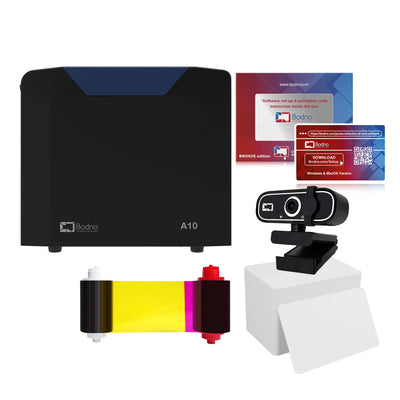


 Bodno A10From $995
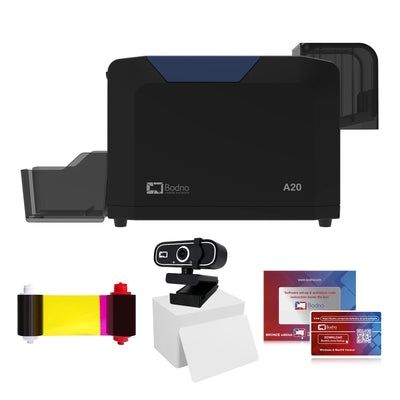
 Bodno A20From $1,595
 Bodno A30From $1,995
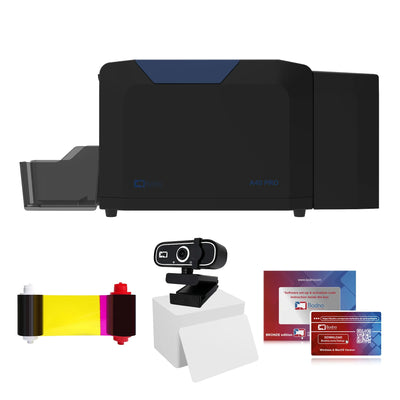
 Bodno A40 ProFrom $2,995
 vs.

 CR80 30 mil PVC cardsFrom $3.99
 Adhesive-backed PVC cardsFrom $9.99
 Proximity cards (NoMativ)From $369.00
 NTAG NFC cards, 100 packFrom $59.00
 Buy the softwareDesign and print ID cards on PC and Mac

On this page
Bodno A-Series Help · Printhead errors
Error 31, shown as TPH CAM error, means the printhead did not move to where the printer expected. A small cam raises and lowers the printhead: a gear turned by a motor, with a sensor that confirms its position. When the cam is blocked, or the sensor cannot see it, the printer stops and shows Error 31.
Restart the printer and listen to the startup. With the power off, look around the printhead for anything caught in it. If Error 31 comes back, send us a 20-second video of the printer starting up and we will tell you which part it is. Technicians can use the Advanced section below.
What you can check yourself
1Restart and listen
Turn the printer off, wait 30 seconds and turn it back on with the cover closed. During startup the printer tests itself, and you should hear the printhead lift and drop. If the error clears, print a test card.
If it comes back, film the startup on your phone with the sound on. Whether that motor turns or stays silent is the first thing we need to know.
2Is anything caught near the printhead?
Power off and unplug. Open the cover, lift out the ribbon and shine a flashlight around the printhead and the gears beside it. A piece of a card, a scrap of ribbon, tape or the backing from the cleaning roller can jam the cam gear.
If you can see it, pull it out with tweezers. Do not force a gear by hand or put metal tools near the printhead. Put the ribbon back, close the cover gently and restart.
3Still Error 31? Contact us
Everything else is inside the case: the cam gear, the cam sensor, the cam motor and its wiring. From your video we can tell which it is, then walk you through the fix or arrange the repair. If you are comfortable working inside electronics, the full procedure is in the Advanced section below.
The cam sensor and motor sit on and behind the main circuit board. If you have not opened one of these printers before, call us first. A wrong move can damage the board or the printhead cable.
What causes Error 31
Advanced: full Error 31 diagnosisFor technicians and experienced users. The outer case must be removed.
Before you start: power off, unplug the power cable and the USB or network cable, and remove the ribbon and cards. Work in this order, and restart the printer after each fix to see whether Error 31 has cleared.
A. Cam gear blocked by debris
With the case off, the cam gear sits on the shaft beside the printhead assembly, viewed from above. Look between the teeth of the large black cam gear and around its hub for anything lodged there: a scrap of card or ribbon, tape, label backing or plastic. Remove it with tweezers and restart.
B. Cam sensor dirty or damaged
The cam position is read by a small green sensor board with two slot-type optical sensors, marked S1 and S2. A tab on the cam passes through the slot of each one. Dust, ribbon flakes or debris in a slot blocks the light and the printer loses the cam position.
- Clean inside both slots with a dry swab or a short burst of compressed air. Do not use liquid.
- Check that the sensor is not cracked or bent and that its cable is seated.
- Restart. If Error 31 is still there after cleaning, replace the cam sensor board.
C. Cam motor wiring or a failed motor
The test is the startup self-test: does the cam motor turn when the printer powers on? The cam motor is a small round DC motor with a brass worm gear on its shaft, at the lower left of the gear side of the printer.
- Motor does not turn at startup: check the motor cable first, at the motor and at its connector on the main circuit board. It must be pushed fully home, with no pinched, cut or loose wires.
- Wiring is fine and the motor still does not turn: replace the cam motor.
- Motor turns but Error 31 stays: go back to B. The sensor is not seeing the cam.
Replacement cam sensors and motors come from Bodno support. Send the printer model, serial number and your startup video and we will ship the right part.
What to send us
- Printer model and serial number (label on the back of the printer)
- A 20-second startup video, sound on, cover closed
- Whether you found anything near the printhead, with a photo if you did
- When it started: a new printer, after a jam, after a ribbon change or after a move
Call (732) 987-5300, email support@bodno.com or open a support request.
Reviewed by Bodno Tech Support, based on real A-Series support cases. Last reviewed November 2026.
Did this fix it?
Still having trouble? Let us take it from here.
Leave your details and tell us what's happening. The CEO's office will have a senior member of our support team reach out to you. It isn't instant, so if it can't wait, call (732) 987-5300, Monday to Friday, 9 AM to 6 PM ET.
Tell our support team your printer model and what you see on the screen, and we'll help you get printing.