Bodno A10From $995
 Bodno A20From $1,595
 Bodno A30From $1,995
 Bodno A40 ProFrom $2,995
 vs.
vs.



 CR80 30 mil PVC cardsFrom $3.99
 Adhesive-backed PVC cardsFrom $9.99
 Proximity cards (NoMativ)From $14.99
 NTAG NFC cards, 100 packFrom $59.00
 Buy the softwareDesign and print ID cards on PC and Mac




On this page
Top 10 Mistakes to Avoid When Buying an ID Card Printer
Introduction
Purchasing an ID card printer is a significant investment for your business, so it’s crucial to make the right decision upfront. With so many options available, it’s easy to make mistakes that could cost your business both time and money. Whether you’re printing employee badges, membership cards, or access cards, choosing the wrong printer can result in inefficiency, low-quality prints, and frequent breakdowns.
To help you make an informed decision, we’ve put together the top 10 mistakes businesses make when purchasing an ID card printer—and how to avoid them.
Mistake 1: Focusing Only on Price
When purchasing an ID card printer, it’s tempting to choose the lowest-priced model. However, a budget-friendly printer can end up costing more in the long run. Cheap models often lack essential features, durability, or the ability to handle high-volume printing, leading to costly repairs or frequent replacements.
For example, the Seaory S25 is a cost-effective option for small-scale printing but requires manual feed. If your business needs to print hundreds of cards regularly, opting for a higher-capacity printer like the Seaory S28, which offers dual-sided printing, can save you time and money over the long term.
Mistake 2: Misjudging Print Volume
Not considering your printing volume is a common mistake. Smaller printers like the Seaory S25 are great for low-volume environments, but they can slow down your operations if you’re printing hundreds of cards each day. For higher-volume businesses, printers like the Magicard 300 (23 seconds per card) or Seaory S28 (18 seconds per card) are far more efficient and reliable.
Mistake 3: Ignoring Future Upgrade Needs
Many first-time buyers focus only on their immediate needs without considering future requirements. As your business grows, you may need features like dual-sided printing or encoding for smart cards and access control. While the Seaory S26 is perfect for single-sided printing, upgrading to a dual-sided printer like the Seaory S28 early on can save you from needing a new printer later.
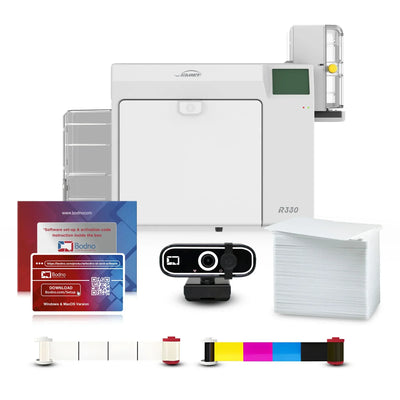
Additionally, some Seaory models allow you to add encoding later (check the options on each model's product page), so it’s worth investing in a printer that can grow with your business. For example, Seaory R330 and R660 can be upgraded for encoding, making them ideal for businesses with future growth in mind.
Mistake 4: Overlooking Print Quality (Retransfer vs. Direct-to-Card)
Print quality is a major factor, especially if your cards are used for security or branding. There are two main types of printers: Direct-to-Card (DTC) and Retransfer.
-
DTC Printers: Models like the Seaory S26 and S28 print directly onto the card but may leave a small white border around the edges.
-
Retransfer Printers: Models like the Seaory R330 and R660 use a higher-quality process that prints edge-to-edge and works well with cards that have embedded technology (like smart cards). Retransfer printing also offers more vibrant colors and better durability, making it ideal for high-security or high-traffic environments.
Mistake 5: Neglecting Durability
If your cards are going to be used daily, durability is key. Retransfer printers produce more durable cards because of the protective film they apply. For example, the Seaory R330 and R660 not only offer better print quality but also extend the lifespan of your cards.
Even if you use a Direct-to-Card printer like the Zebra ZC350 or Evolis Primacy 2, investing in double overlay ribbons can significantly improve card durability. While these ribbons may cost more upfront, they save money in the long run by reducing card replacements.
Mistake 6: Overlooking Security Features
Security is critical for businesses that use ID cards for access control or sensitive information. Some printers offer advanced security features, such as:
- Encoding capabilities for smart cards or magnetic stripes.
- Holographic overlays to protect against tampering.
- Custom HoloKote options, available with the Magicard D for an additional $715 (Magicard Custom HoloKote Key), which allows you to add a personalized watermark for extra security.
Choosing the right security features is essential to protect your business.
Mistake 7: Not Factoring in Consumable Costs
When purchasing a printer, many businesses forget to consider the ongoing cost of consumables like ribbons, retransfer film, and cleaning kits. Direct-to-Card printers like the Seaory S26 and S28 use more affordable ribbons, but Retransfer printers like the Seaory R330 and R660 require additional retransfer film, which increases ongoing costs.
Investing in consumables like cleaning kits is also essential for maintaining your printer and extending its lifespan. Regular maintenance can prevent costly repairs and ensure your printer produces high-quality cards consistently.
Mistake 8: Neglecting Maintenance and Support
Every printer requires regular maintenance to stay in top condition. Skipping maintenance or not investing in cleaning kits can lead to costly repairs, especially if your printhead gets damaged. Many printers, like those from Seaory, come with excellent warranties, and Bodno offers TotalCare protection plans to provide added peace of mind.
In addition, having access to reliable customer support is crucial. Bodno provides in-house support from our own team, ensuring any issues you encounter are handled quickly and efficiently, minimizing downtime for your business.
Mistake 9: Choosing the Wrong Connectivity Options and System Compatibility
Choosing the wrong connectivity option can limit your productivity. Most Seaory printers, such as the S26, S28, R330, and R660, come with USB and Ethernet connectivity, which is ideal for businesses with multiple workstations. The Zebra ZC350 offers optional Wi-Fi, while the Magicard 600 includes Wi-Fi as standard, giving you more flexibility with where and how you print.
Mac compatibility (updated October 2026): the current Seaory models Bodno sells — the S25, S26, S28, R330 and R660 — print from both Windows and Mac, and Bodno ID card software runs on both. One exception to plan for: smart card, RFID and contactless encoding in the software is Windows-only, so if you need to encode cards, use a Windows PC for that step. See all Mac-compatible card printers, or call us to confirm drivers for your macOS version.
Mistake 10: Not Planning for Future Scalability
Many businesses only think about their immediate needs when buying a printer. However, as your business grows, so will your card printing requirements. Starting with a small-scale printer like the Seaory S25 may work now, but if you anticipate printing more cards in the future, opting for a higher-capacity model like the Seaory S28 or Seaory R660 can save you from upgrading sooner than necessary.
Printers like the Seaory R330 and R660 also support encoding upgrades, making them ideal for businesses that may eventually need to implement smart card or access control features.
Final Thoughts
Avoiding these common mistakes will help you choose the best ID card printer for your business. Whether you need a high-volume printer, a model with advanced security features, or a printer that can grow with your business, taking the time to evaluate your options will save you money and headaches in the long run.
Ready to make the right decision? Check out our full range of ID card printers here or download our buying guide.
Answer a few questions and we'll send you the right printer, with a quote. Or compare any two side by side.