


 Bodno A10From $995
 Bodno A20From $1,595
 Bodno A30From $1,995
 Bodno A40 ProFrom $2,995
 vs.
vs.



 CR80 30 mil PVC cardsFrom $3.99
 Adhesive-backed PVC cardsFrom $9.99
 Proximity cards (NoMativ)From $14.99
 NTAG NFC cards, 100 packFrom $59.00
 Buy the softwareDesign and print ID cards on PC and Mac





On this page
Bodno also offers the possibility to send print jobs through the Windows Command Prompt (cmd.exe) or an external application/file capable of using the commands.
In this technote we will address the existing commands, how to use them and we will show how to create a Batch file *.bat to run the previously saved commands.
Please note that to work with the command line print, the card you are going to use must be previously saved with your printer settings already configured.
The commands usable to interact with Bodno are:
/P or /PRINT – is the command to Print
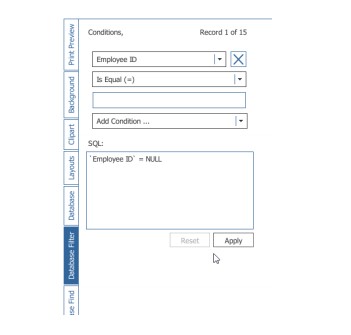
/DBFILTER:"Filter" – where "Filter" is the equivalent to a SQL WHERE clause and the search syntax has to
be respected.
This syntax can be checked using the Database Filter tab in Bodno and it will be like this:
/DBFILTER:"`Employee ID` = 10"
/SAVE:"optionalFileName" – Saves the document opened in the command line applying all changes made by Print or DBFilter. If an optional filename is specified, then the card document will be saved with the new name.
For example:
/SAVE – saves the document with the current file name
/SAVE:"D:/Tickets/newCard.card" – saves the document at the path location with the specified name. Using the Save command with a filter allows you to preview the card fields filled with data that meets the determined conditions before printing.
/SHOWPRINTDIALOG – always show Print Dialog Box
/NOMAINWINDOW – hides Bodno main GUI (Graphical User Interface).
/PRINTERNAME:"Your Printer Name" – defines a new printer to be use, instead of the predefined one in the .card file.
For example:
/PRINTERNAME:"Evolis Primacy" – independent of the printer configured in the selected .card file, the print job will go to a printer named Evolis Primacy.
/PRINTPREVIEW - adds a dialog that display a card preview before printing.
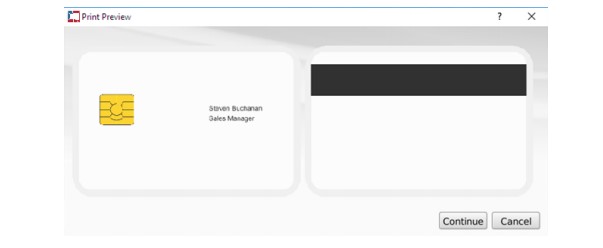
/PRINTPREVIEW:NOBUTTONS - the preview dialog is shown without buttons (Continue\Interrupt)
/EXIT – Forces Bodno to Close & Exit after printing
The syntax to be used is:
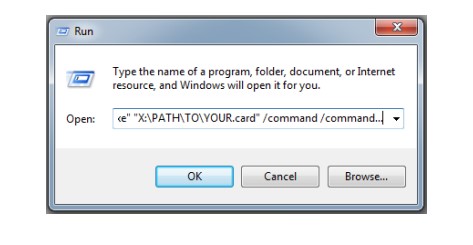
"X:\PATH\TO\Bodno.exe" "X:\PATH\TO\YOUR.card" /command /command...
Note that the location of the Bodno.exe file may vary depending on your operating system and the location you selected when installing Bodno.
The normal path for x86 systems is "C:\Program Files\Bodno\Bodno.exe".
The normal path for x64 systems is "C:\Program Files (x86)\Bodno\Bodno.exe".
The card file location is where you saved your Bodno.card document.
Print commands can be run directly either from the Windows Run dialog box, from the Windows Command Prompt, from a Batch file, or a customized application. To run a print command from the Windows Run dialog box, open the dialog box through the Windows Menu Start>Run type the print commands in the dialog box and click the OK button:
To run the print command from the Windows Command Prompt, open the command prompt through the Windows menu Start>Accessories>Command Prompt. And type the print commands in the Command Prompt window:

The print commands can be stored in a batch file (.bat) for later use. This way, you can create as many batch files as you like, each with its custom settings, and run your desired file with the desired settings whenever it's needed.
You can create a batch file in any regular text editor like Notepad by starting a new text document. Type in the commands you want to run and save the file with the extension (.bat).
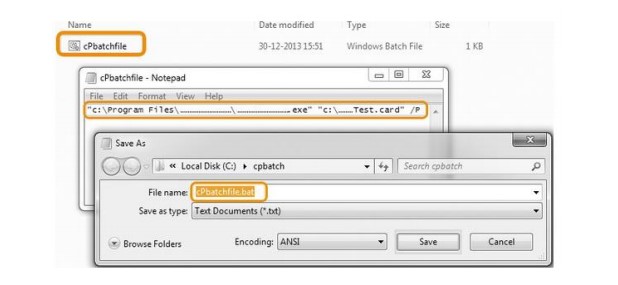
You can then run the .bat file directly by double-clicking the file, or through an external program such as the Windows Task Scheduler.
Download it, activate it, or add another license. Activation codes arrive by email in 15 minutes.
