Bodno A10From $995
 Bodno A20From $1,595
 Bodno A30From $1,995
 Bodno A40 ProFrom $2,995
 vs.
vs.



 CR80 30 mil PVC cardsFrom $3.99
 Adhesive-backed PVC cardsFrom $9.99
 Proximity cards (NoMativ)From $14.99
 NTAG NFC cards, 100 packFrom $59.00
 Buy the softwareDesign and print ID cards on PC and Mac




On this page
Bodno A-Series Help · Card feeding
A jam or feed error usually has a simple cause: the cards, the way they are loaded, or a dirty roller. Clear the card first, then use the list below to stop it happening again.
Power off and slide the card out by hand. Then fan the stack, set the thickness slider, put the counterweight card on top, and run a cleaning card. Slot-punched cards that will not flip: Rotate 180°. Use only the original power adapter.
First, get the card out
Turn the printer off. Open the cover, lift out the ribbon cartridge and slide the card out along its path by hand. If it will not move with light pressure, stop and contact us rather than pulling harder. Then run a cleaning card from the BB001 kit before you print again.
Then match what happened
1Cards will not feed, or two go in at once
Usually shown as a feed error (Error 51).
- Fan the stack to break the static between new cards.
- Take out any bent or warped cards.
- Set the thickness slider at the feeder to your cards.
- Seat the card cartridge or hopper fully, and press the stack down into the feeder.
- Put the counterweight card on top (models with a hopper).
- Check the driver is set to feed from where your cards actually are: the card hopper, or the manual slot for one card at a time. A mismatch shows as a feed error (51 or 52).
2Card stops partway through
Shown as a card jam (Error 11 or 13). Clear it as above, then check you are on plain CR80 PVC cards. Coated inkjet cards jam and stick to the rollers. If jams keep happening on good cards, check the next two items before anything else.
3Front prints, card will not turn over (A30, A40 Pro)
A flipper error (Error 33) on a card with a punched slot or hole is usually the hole catching as the card turns. Turn on Rotate 180° in Printing Preferences, or print first and punch afterward. If it fails on plain cards too, contact us.
4"No card" with a full hopper
Check the counterweight card is on the stack and the card slider is back at its normal position. Move the printer to a flat, solid table; we have seen this error disappear just from that. If the small no-card lever in the hopper is broken, the check can be turned off in the driver so you can keep printing. Contact us and we will walk you through it.
5Jam error with nothing inside
A sensor is seeing something that is not there. Run the cleaning card, look along the feed and exit paths for a sliver of card, then turn the printer off and on.
Other codes on the screen
Two causes people do not expect
- The power adapter. An adapter that fits but cannot supply enough power makes the printer jam and stop mid-print. Use only the original.
- Dirty rollers. Dust makes cards slip. Clean at every color ribbon change, and replace a worn card moving roller.
Parts for this fix
| Bodno CR80 30 mil PVC Cards | $14.99 | Add to cart |
| A-Series Counterweight Card | $59.99 | Add to cart |
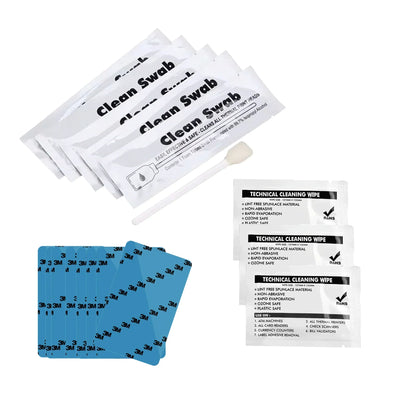
| Bodno BB001 Cleaning Kit for A-Series | $39.99 | Add to cart |
| A-Series Card Moving Roller | $29.99 | Add to cart |
Write to us with these and we can answer the same day
Most cases go back and forth an extra time only because we have to ask for these. Put them in your first message:
- The serial number from the label on the back of the printer
- Your model: A10, A20, A30 or A40 Pro
- A screenshot of the printer information screen in the driver (it shows the firmware and driver version)
- The error code on the printer screen
- A short video of the card feeding or jamming
- What cards you are using
Written by Bodno Tech Support from real A-Series support cases. Last reviewed October 2026.
Tell our support team your printer model and what you see on the screen, and we'll help you get printing.